

Newsgroups | Subscribing to Newsgroups


Subscribing to Newsgroups
 In the previous section we saw how to use a newsreader to browse messages
posted to newsgroups. How can we add and remove newsgroups from the list
displayed in the browser?
In the previous section we saw how to use a newsreader to browse messages
posted to newsgroups. How can we add and remove newsgroups from the list
displayed in the browser?
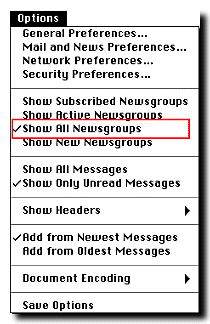
The first step in adding newsgroups to the list is to display all available newsgroups. This is implemented by selecting "Show All Newsgroups" under the "Options" menu (see figure at right). This causes the newsreader to display a list of all newsgroups provided by the news server that the browser is set to access.
Newsgroup Hierarchies
There are literally thousands of newsgroups to choose from.
What the various abbreviations in the newsgroup names mean may be determined by
consulting a list of
newsgroup
hierarchies. For example, from such a list one finds that hierarchies
beginning with "de." correspond to international German-language
newsgroups (of which there are approximately 90, each beginning with the prefix
de.).
The Full List of Newsgroups
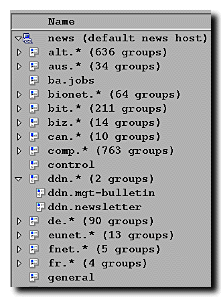 The beginning of the full list of a typical set of newsgroups is shown in the
figure to the left.
By clicking on the triangle beside each category, the newsgroups in that hierarchy
may be displayed (by this we mean in the actual list displayed on your browser;
the images on this page are pictures
of browser windows, so the buttons don't
do anything if you click them!).
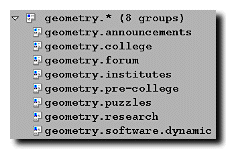
For example, in the figure below we show the 8 newgroups
under the "geometry" hierarchy:
The beginning of the full list of a typical set of newsgroups is shown in the
figure to the left.
By clicking on the triangle beside each category, the newsgroups in that hierarchy
may be displayed (by this we mean in the actual list displayed on your browser;
the images on this page are pictures
of browser windows, so the buttons don't
do anything if you click them!).
For example, in the figure below we show the 8 newgroups
under the "geometry" hierarchy:
Subscribing and Unsubscribing
 Subscribing to a newsgroup is a 2-step process. First we must add the
newsgroup to the list being displayed, then we must select it for subscription.
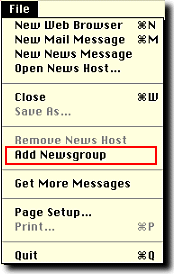
A newsgroup is added to the display list by selecting "Add Newsgroup" from
the "File" pulldown menu (see the adjacent figure).
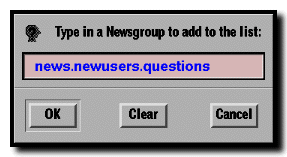
This gives a dialog box into which one types the
name of the newsgroup (for example, news.newusers.questions):
Subscribing to a newsgroup is a 2-step process. First we must add the
newsgroup to the list being displayed, then we must select it for subscription.
A newsgroup is added to the display list by selecting "Add Newsgroup" from
the "File" pulldown menu (see the adjacent figure).
This gives a dialog box into which one types the
name of the newsgroup (for example, news.newusers.questions):
 After
adding, the newsgroup should display in the list of newsgroups
if one goes to the "Options" menu and selects "Show Active
Newsgroups" (see the picture of the "Options" menu above).
After
adding, the newsgroup should display in the list of newsgroups
if one goes to the "Options" menu and selects "Show Active
Newsgroups" (see the picture of the "Options" menu above).
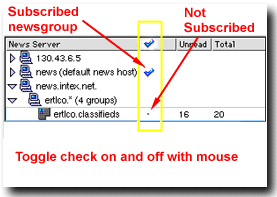 To subscribe to the newsgroup, toggle the entry for the newsgroup in the column
marked by a check at the top (see the adjacent figure). The newsgroup is
subscribed if a check shows in its row and unsubscribed if a dot shows in
its row. You can toggle back and forth between these choices using the mouse.
To subscribe to the newsgroup, toggle the entry for the newsgroup in the column
marked by a check at the top (see the adjacent figure). The newsgroup is
subscribed if a check shows in its row and unsubscribed if a dot shows in
its row. You can toggle back and forth between these choices using the mouse.
Notice that you can select from the "Options" menu (top figure in this section) the choice "Show Subscribed Newsgroups". If this choice is made, then each time you open the newsreader it will display a customized list giving the newsgroups to which you currently subscribe.
In summary: (1) To subscribe to a newsgroup, add the newsgroup to the
list being displayed and toggle it to show a checkmark to subscribe to it.
(2) To unsubscribe to a newsgroup, use the mouse to toggle
the check in its row to a dot.
Managing Newsgroup Messages
 Now you know how to subscribe and unsubscribe to newsgroups, and how to read
messages in newsgroups. An important question is what to do with those
messages after you have read them.
Now you know how to subscribe and unsubscribe to newsgroups, and how to read
messages in newsgroups. An important question is what to do with those
messages after you have read them.
The newsreader has many sophisticated ways to save messages to files, to forward them to someone else, to "thread" them, which means to group messages that are related to each other, and so on. We will let you explore those possibilities on your own (see the help files for your browser).
However, before leaving this section
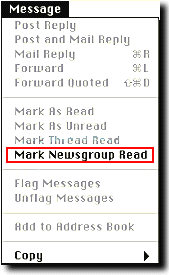
we will point out one important management feature: The "Mark
Newsgroup Read" command that may be accessed from the "Message" menu (see
adjacent figure). This marks all messages in the selected newsgroup as "read";
thus, only new postings will be displayed the next time you look at this
newsgroup (if you have selected "Show Only Unread Messages" under the "Options"
menu---see the first figure in this section). This can be important, since
the more popular newsgroups average hundreds of postings per day.