File
Hypertext Links
You are looking at HyperText documents.
The colored and/or underlined text (
for example, like this
)
corresponds to hypertext links to other documents. Clicking
once on these links will take you to the corresponding document, and if you
use the mouse to place the cursor over the link the corresponding address for
the link usually appears somewhere at the bottom - hold your
mouse over a link without clicking
and see what happens.
HyperText is for exploring, and you are
unlikely to get into trouble by clicking on whatever link interests you.
You can
always return to the previous page by using the "Back" button on your browser,
and your browser probably has a "History" list that allows you to return
immediately to documents accessed earlier in the session. In the worst case,
the "Home" button on the browser will rescue you from almost anything, taking
you back to where you started. And don't worry about damaging any hardware or
software on your computer by randomly clicking on links. If you can
do that, you are very clever indeed!
Browser Navigation Buttons
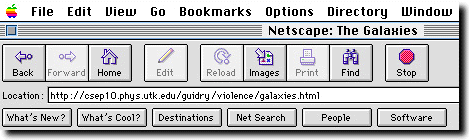
Exactly where these navigation buttons
are located depends on your browser. The following image shows the menu of
Netscape Navigator. The "Back" button, as well as other
navigation aids such as "Home" and "Forward" (you guessed it, the opposite of
"Back"!)
are evident. The "History" list in this case is a pulldown menu
under "Go". Your browser is probably similar. Note that this is an IMAGE OF
A BROWSER, not a browser - you can't click on the buttons in this image and
expect it to do anything!)
Visited and Unvisited Links
If your browser is
set up to distinguish visited from unvisited links, the color of links you
have already visited will be different from unvisited ones. The exact colors
depend on your browser and the document you are viewing. Two common colors for
visited and unvisited links are
red and blue, respectively, but the colors
depend on the browser and how the document
that you are viewing has been written.
Additional Navigation Buttons
At the top and
bottom of main pages there may be additional navigation buttons.
Clicking on the right-arrow button (or the word "Next") will take you to the
next section; the left arrow (or "Back") returns to the previous section;
The small round Help" button (with an "H" in it)
gives you the help page that you
are reading now.
Images as Hypertext Links
In addition to words, other objects on a page may be clickable links.
For example, images may be hypertext linked to something else. This will
usually be indicated by a colored box around the image, or by some other
signal (for example, in Netscape Navigator the cursor image turns into a
hand with a pointing finger when it is over a clickable link). When in doubt,
click and see what happens!
Browser Frames
Most browsers have the capability to divide the main browser window
into several
sub-windows or
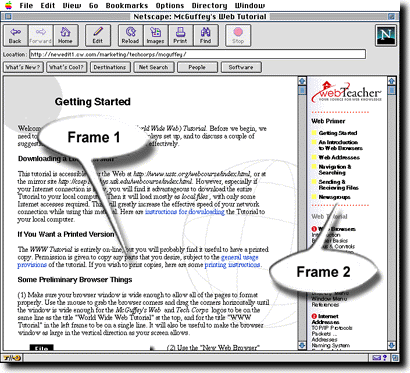
"frames". The following
figure illustrates for a screen divided into two frames.
Essentially, each frame is an independent browser window, and these
independent browser windows can talk to each other.