

FTP | Anonymous FTP


Anonymous FTP
There are various implementations of the FTP protocol available. We shall implement FTP with a program called WS_FTP Limited Edition (or WS_FTP LE), which is free for educators and non-commercial home use. (WS_FTP Pro, which is not free, is the version required for commercial use.)
Making an FTP Connection
We are going to illustrate the use of FTP by making an
"Anonymous FTP Access". This means an access to an FTP server that allows
"Anonymous" logins: anyone can log in and get files by FTP, whether they have
an account on that machine or not. Such computers are called "Anonymous FTP
Servers".
The server we are going to log into is in Finland (the Internet doesn't care
very much about national boundaries!), and we are going to get a
file containing some software; computer types would say that we are going to
"download" a file.
Logging into the Server
Open the WS_FTP LE program by double clicking on its icon.
This will bring up a Session Profile screen like that in
the figure below that will let you login to the remote system.
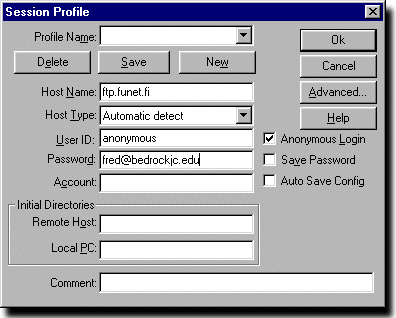
Erase any entries in the fields of the main WS_FTP LE Session Profile
window and enter the following:
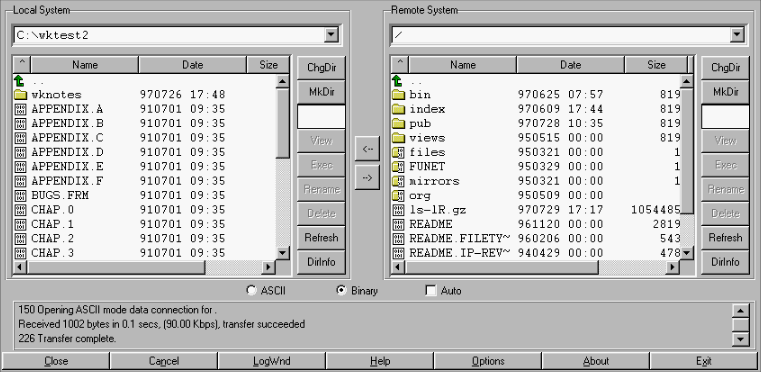
After giving the computer sufficient time to connect, you should get a display screen that looks approximately like the one shown below. As you connect and are logged in, information returned from the server appears near the bottom of the display, just above the row of buttons.
Finding the File
The list on the left side of this screen shows the directories and files that
are on your computer, and the list on the right side of the display
shows the directories and files that are on the ftp server in Finland.
We are now going to change directories on the server
to find the file that we want to get.
First double-click on the entry labeled "pub" in the right side of the
display.
This is a directory,
and double clicking on it will open it (you can tell that it is a
directory (or folder) because of the little folder symbol beside it).
Double-clicking "pub" brings up a list of directories and files that are in this directory. Scroll down and find the directory "windows". Double-click its icon to open this directory. The resulting display gives a list of files and directories inside "windows". Scroll down to the directory labeled "95" and double-click to open it. The resulting display shows a folder named "winsock"; double-click to open it. Now scroll down and find the directory "Ping". Double-click to open this directory.
At this point we are inside the directory "Ping", which is inside the directory "winsock", which is inside the directory "95", which is inside the directory "windows", which is inside the directory "pub". In computer jargon, we would say that the path to our present location is /pub/windows/95/winsock/Ping, relative to the "root" directory for the FTP server on the machine we are accessing.
In the resulting list of files there should be one called wsping32.zip. This is the file that we are going to download, so select it with one click of the mouse.
Downloading the File
Before we download,
we must decide whether the file is an ASCII file, (text) or a
binary file. The
suffix ".zip" on the file indicates that the file
contains material that has been "archived" and "compressed".
In this context, "archived" means that one or
more files or directories have been grouped together, and "compressed" means
that the files have been rearranged so that they store more efficiently on a
computer (take up less space). Such zip files are always binary
files (see the discussion of
compression & archiving
in the Appendices).
Thus, we select the button below the two file lists called "Binary". (In many cases, the button labeled "Auto" will cause the WS_FTP LE program to make the correct selection of "ASCII" or "Binary" automatically, but if you know the format for certain it is better to specify it.)
Now you need to specify where on your computer you want to put the file you are about to download. In the list of files and directories on the left, locate and click on the folder that you want to use for the destination. If you do not see this folder in the list, double click the up arrow at the top of the list to go to the next higher level directory. (Continue until you find the folder you want and then click once on it to select.)
Now we are ready to download. Since you want to transfer the file from the server in Finland (the list of files on the right) to your computer (the list of files on the left), just click the arrow in the middle of the display, between the two lists, that points from the right list to the left list.
After a while (sometimes you may have to wait a minute or two if the server is
very busy)
the file should download to your computer. It may take a few seconds, or a
few minutes, depending on how fast your network is and (usually most important)
how busy the ftp server is. While the file is downloading, information will
be displayed in the message area of the
WS_FTP LE window, just below the two file lists,
letting you know how the transfer is progressing.
Using the Program We Have Downloaded
If your Browser is configured properly, it should have already launched a
program to uncompress and unarchive the file that you have just downloaded.
There should now be an icon named Wsping32.exe in your destination
folder.
Double click this icon, and a
window like that shown in the figure below will open.
(Initially the white message area will be empty exept for some information
about the program itself, and the name and ip number of your computer.)
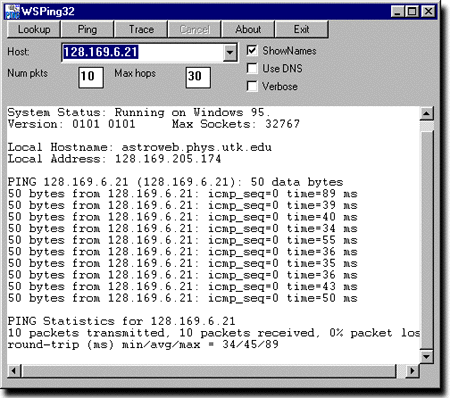
The program you have downloaded and unzipped is named WSPing32. It can be a good trouble shooting tool. If you experience a long delay in being able to connect to a remote computer, you can use this program to check whether or not that computer is currently alive on the net. You simply enter the ip number or DNS name of the computer in the box labeled "Host" and click one of the buttons at the top of the WSPing32 window. The program will then transmit a series of control packets to the indicated remote machine. (These packets carry no data but are used by the TCP/IP protocol to initiate communications between systems.)
The program's buttons perform the following functions:
-
Lookup -- Sends packets and
returns the "official name" and ip number of the computer.
This allows you to determine the ip number for a computer if you
only know its name, and vice versa.
-
Ping -- The program sends a series of packets, reports if
each transmission is successful, and gives the round-trip transit
time if a packet was received.
The "Cancel" button halts the pinging of the remote machine.
- Trace -- Sends a series of data packets to the remote computer;
reports on the time taken for the transfer and whether or not all packets
were successfully received. In addition, provides information on the route
taken by the packets (i.e., what gateways the packets passed through enroute
to the remote computer).
Other Features of WS_FTP LE
There are many other things that you can do with WS_FTP LE. For example, you can use it to send a file from your computer to another computer (often called "Uploading"), You may find out about these things by reading the program's help files, which may be accessed with the "Help" button at the middle bottom of the WS_FTP LE window, as illustrated in the figure below.