

Electronic Mail | Receiving Electronic Mail


Receiving Electronic Mail
 To see how to read mail, we bring up the full mail interface of the Web
Browser. As noted in the previous section, many browser-based mail systems are in use, so we can only give a representative example. For purposes of this discussion, we will assume that the browser is
Netscape 3.0,
but other graphical mail interfaces will behave in a very similar
way.
To see how to read mail, we bring up the full mail interface of the Web
Browser. As noted in the previous section, many browser-based mail systems are in use, so we can only give a representative example. For purposes of this discussion, we will assume that the browser is
Netscape 3.0,
but other graphical mail interfaces will behave in a very similar
way.
The Netscape Mail Interface
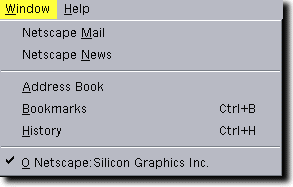
In the Netscape Browser, select "Netscape Mail" from the pulldown menu
under "Window", as indicated in the adjacent figure. This will launch a mail
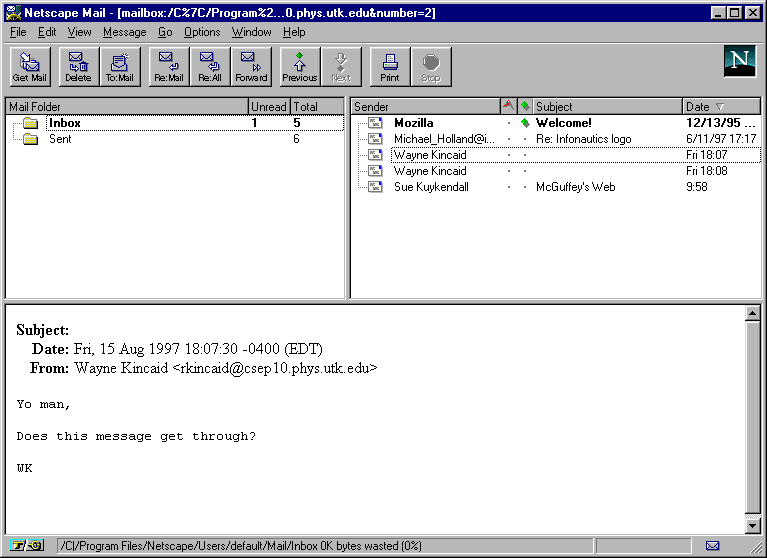
interface window that looks similar to the figure below.
This interface has three basic parts: the main mail window, a set of control
buttons, and a set of pulldown menus at the top. Let's begin by examining the
main mail window (the portion of the interface below the control buttons).
The Main Mail Window
As indicated in the above figure, the main window of the mail interface has 3
parts:
-
The upper left portion lists folders that contain mail, and that
can be selected using the mouse cursor. In this example, the folder "InBox"
has been selected, as indicated by its darkened icon.
-
The upper right portion lists the mail messages stored in the folder that is
selected. In this example, the message with subject "Re: modest proposal" has been
selected by the mouse cursor.
- The lower portion of the window displays the text of the message selected in the upper right window.
Adjusting the Main Mail Window
The overall size of the mail window can the adjusted by dragging its corners
with the mouse.
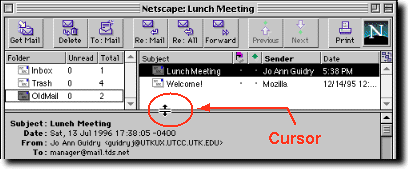
The size of each field in the main mail window can be adjusted by holding the
mouse down over a horizontal or vertical bar to grab it (indicated by the
cursor assuming a <-||-> shape), and then dragging it to the
desired location and releasing the mouse button. The figure below shows
the mouse cursor while a horizontal bar is being moved. Use the mouse to
customize your mail window so that you are happy with the way it is displaying
things.
The Control Buttons
The function of the control buttons is summarized in the following figure for
the Windows version of Netscape 3.0.
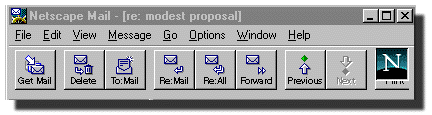
These descriptions are rather self-explanatory: from left to right in order these buttons may be used to
- ask the mail program to check the mail server for new mail,
- delete a selected message,
- compose a new message,
- reply to the author of a mail message,
- reply to both the author of a message and anyone that she copied it to,
- forward a message to someone else,
- navigate,
- print a message (if you have a printer and it has been configured properly),
- stop
The Pulldown Menus
The pulldown menus for the Netscape mail interface perform many of the
functions of the control buttons that we have already discussed, and allow the
mail program to be customized for your applications. We won't go into details
on that now. With the experience that you have gained to this point,
you should be able to figure out many of these functions on your own. A good
place to start is the
Netscape
Handbook.