

Electronic Mail | Sending Electronic Mail


Sending Electronic Mail
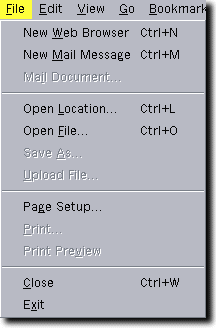
Sending email is relatively easy if your Web Browser supports email and has been set up to handle email. We will assume that to be true in what follows. Many different browser-based email systems are in use. We will give an example that will probably not be exactly the same as yours, but it should be similar.
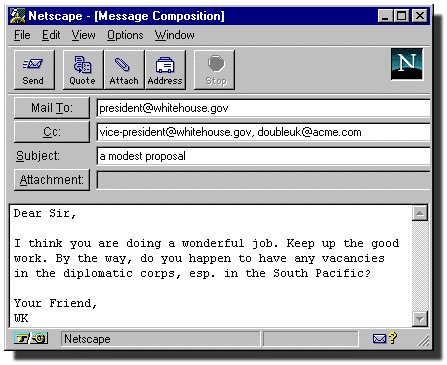
To send email, go to your browser menu and select "New Mail Message" from the pulldown menu under "File" (see the adjacent figure). This will bring up a mail window of the form shown in the figure below.
As you can see, in this figure there are several
windows into which you may enter information.
To illustrate what goes into those windows, we are going to
send a mail message to the President of the United States.
Yes, the President
has an email address! It is
And so does the Vice-President; it is
How do we know? Well, trust us for now; we'll find out how to locate email addresses a little later.
Now to send the email message, we do the following in the mail window that you have opened:
- Enter the subject of your message into the "Subject" window. You don't have to
put a subject, but it helps in keeping track of multiple messages to or from
the same person. It is good practice to include one for all messages.
- Enter the email address(es) of the persons that you are sending the message
to in the "Mail To:" field.
For this example we are going to send a message to
the President, so enter
[email protected] Be sure to put the address exactly like this. The regular postal service may still deliver mail if you make a spelling mistake in the address, but most computers will reject email if even one character is wrong in the address.
- Enter the email address(es) of any other persons that you wish to receive
copies of the message. In this case, let's send a copy to the Vice-President
(in case the President doesn't have time to take care of your request!),
and let's send a copy to ourselves so we will have a record of the message that
we sent. So enter into the "Cc:" field
[email protected], youraddress where youraddress is whatever your personal email address is. ("Cc:" stands for "Carbon Copy", from the old days when people used mechanical typewriters with carbon paper for copies and rode around in covered wagons!)
Notice that in this case we use commas to separate multiple addresses. Entries in the "Cc:" field are optional (you don't have to send a copy to anyone), but you must enter an address in the "Mail To:" field, since it wouldn't make much sense to send a message without an address for the primary person the message is for! The distinction between the primary recipients and those receiving a Cc: is for human sensibilities. In either case, the computer sends the email message to the address listed. The only difference is where the recipient's address will be printed in the mail header when it is read.
- Now type whatever you wish to say in the message into the main window
frame. (Let's use some good taste here; this is going to the President, after
all!) The lines will wrap automatically when you come to the edge of the
field, and if you need more space, the window will scroll down automatically.
- You may edit any of the fields in the mail window at any time before sending
the message by using the mouse to position the cursor and inserting new text or
erasing text with the "delete" key.
- If you wanted to attach a file to the mail message (for example, a file
with some text, or even a file with your picture) you could use the
"Attach"
button to attach the file. However, we will assume that you are sufficiently
famous that the President does not need to see your picture, so we won't attach
anything to this message.
- When you are happy with everything you've typed into the Message Compostion Window, click the "Send" button to send the message.
Since it looks like we are going to be receiving some mail, we now need to learn how to read incoming email messages.