

Electronic Mail | Attachments


Attachments
Often we just want to type some simple text in a mail message, and we already know almost everything very important that we need to know about that. However, sometimes we would like to "attach" something to a mail message that we send. For example, it could be a text file that contains further information that we would like the recipient to have, or perhaps we would like to send a color image of something with the mail message, or a compiled computer code.
The mailing program allows just such possibilities. Not surprisingly, the
command to do this is "Attach", and it can be initiated by clicking on the
browser button having this name.
Encoding of Files
Unfortunately, basic email is set up to handle text files (often called
"ASCII" files), not the binary files associated with color images or executable
computer codes. Thus, we usually cannot send binary files directly in email.
The solution to this inconvenience
is called encoding: a binary file is
"encoded" into ASCII by using a prescription to assign
to every possible character in a
binary file a unique sequence of printable or ASCII characters. The resulting
file is thus a text file (one made only of printable characters) that contains
all the information of the binary file in the form of a code using only
printable characters. This can then be sent by email, and if on the other end
the necessary software exists that can "decode" the encoded file, it can be
turned back into the original binary file.
The most common encoding scheme used on Macintoshes is called BinHex. Another encoding scheme, more often found on Unix machines, is called uucode. Thus, to send binary files by email between Macintoshes, one would commonly use BinHex to encode the file on one end, email it, and then use BinHex to decode it on the other end. We discuss the use of BinHex further in a later Exercise and in this Appendix.
General binary
files may be encoded using BinHex
and attached to email messages. In the
example we are going to use here, we will exploit the fact that the
mailer associated with the
Netscape browser knows automatically how to encode and decode GIF file
images. Thus, we can simply attach these to a mail message using
the Netscape mailer, and if the person receiving the file is also
using Netscape, the file will be automatically decoded on the other
end. So in this case we can handle the image-file attachment exactly as if it
were a text attachment, even though it is a binary file. Your mailer probably has a similar attachment capability.
Capturing an Image to a File
To illustrate an attachment in a mail message, we are first going to save an
image from the browser into a file, then we are going to mail that file as an
attachment to ourselves (it is perfectly legitimate to mail something to
yourself; the mail program will be happy to do that. Mailing something to
yourself is often a simple way to check how mail programs do various things.)
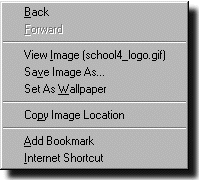 Go to
this page,
hold the mouse over the schoolhouse
image, and hold the button down. A popup menu like the adjacent figure
should appear that gives you several options.
Choose the one labeled
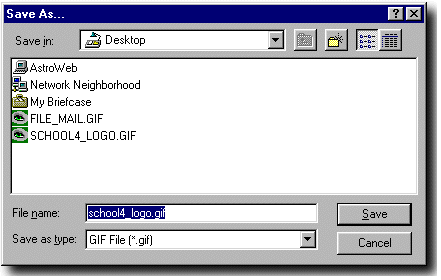
"Save Image As". This pops up a dialog box that looks like the figure below.
Change directories if necessary in this box, and save the image under
the name school4_logo.gif
on the Desktop. Now you have the image of the
schoolhouse in a file on your computer disk.
Go to
this page,
hold the mouse over the schoolhouse
image, and hold the button down. A popup menu like the adjacent figure
should appear that gives you several options.
Choose the one labeled
"Save Image As". This pops up a dialog box that looks like the figure below.
Change directories if necessary in this box, and save the image under
the name school4_logo.gif
on the Desktop. Now you have the image of the
schoolhouse in a file on your computer disk.
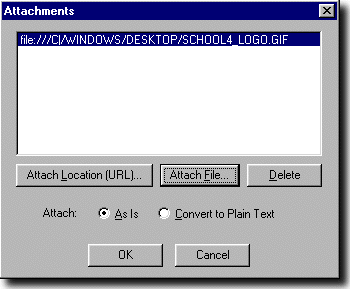
The Attachment Popup Window
Open the Netscape Mail window, and fill in the "Mail To" field with your email address. Type "attachment test" in the "Subject" window, and leave the "CC:" window blank. Now click on the "Attachment" button. This brings up an Attachments Window.
Sending Mail with the Attachment
Once you have attached the documents that you wish to attach, close the
Attachments
Window. Your main mail window will now look something like this.
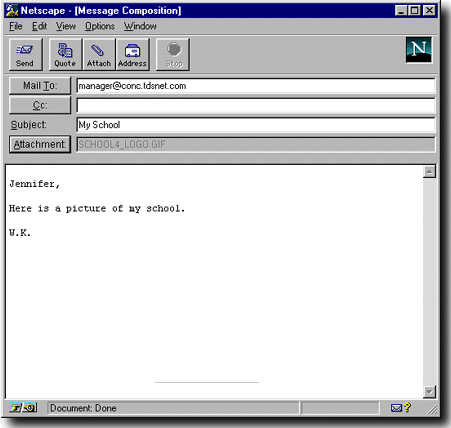
If you want to change something before sending, you can edit the addresses and text directly, and you can add or remove attachments by opening the Attachments Window again. Once you are happy with the addresses, message, and attachments, click "Send" to mail the message.
Reading the Mail Message
You should receive the message that you sent to yourself rather soon. Once it
arrives, use the methods discussed in the previous section to display it. If
all has gone well, it should look something like the following image:
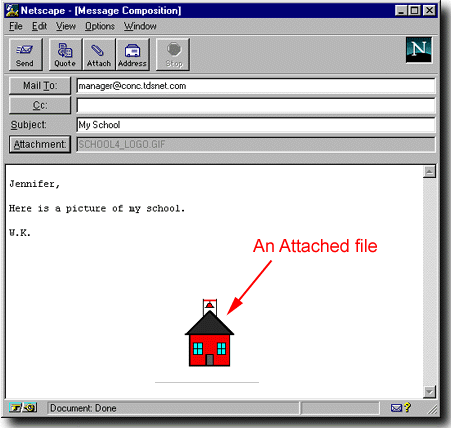
As you can see, the message contains both text and the attached image.