

Newsgroups | Subscribing to Newsgroups


Subscribing to Newsgroups
In the previous section we saw how to use a newsreader to browse messages posted to newsgroups. How can we add and remove newsgroups from the list displayed in the browser?
 The first step in adding newsgroups to the list
is to display all available newsgroups.
To do this, double click the news server name in the Folder Name panel as
shown at right. (In our case we'll be connecting to a server named
news.utk.edu. Your internet provider should provide you with the appropriate
address to your news server.)
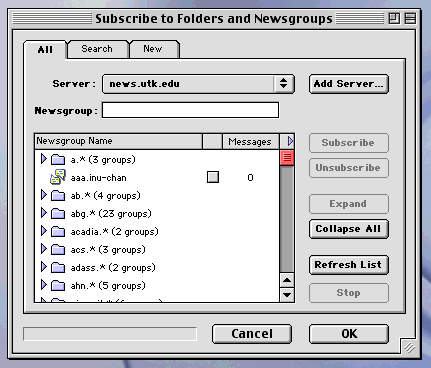
This
should open a window named "Subscribe to Folders and Newsgroups" as shown
below.
(For brevity, we'll just call it the "subscribe window" from here on.)
Initially, the "Newsgroup Name" area of this new window may be empty. If so, click
the "All"
tab of this window if it is not already selected. Your computer should now download
the list of all available newsgroups from the server and display them inside the
"Newsgroup Name" section of the subscribe window.
The first step in adding newsgroups to the list
is to display all available newsgroups.
To do this, double click the news server name in the Folder Name panel as
shown at right. (In our case we'll be connecting to a server named
news.utk.edu. Your internet provider should provide you with the appropriate
address to your news server.)
This
should open a window named "Subscribe to Folders and Newsgroups" as shown
below.
(For brevity, we'll just call it the "subscribe window" from here on.)
Initially, the "Newsgroup Name" area of this new window may be empty. If so, click
the "All"
tab of this window if it is not already selected. Your computer should now download
the list of all available newsgroups from the server and display them inside the
"Newsgroup Name" section of the subscribe window.
Newsgroup Hierarchies
There are literally thousands of newsgroups to choose from.
What the various abbreviations in the newsgroup names mean may be determined by
consulting a list of
newsgroup
hierarchies. For example, from such a list one finds that hierarchies
beginning with "de." correspond to international German-language
newsgroups (of which there were 497 on the date when this page was last updated).
The Full List of Newsgroups
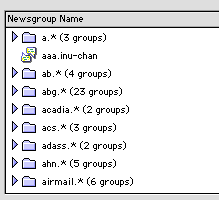 The beginning of the full list of a typical set of newsgroups is shown in the
figure to the left.
By clicking on the triangle beside each category, the newsgroups in that hierarchy
may be displayed.
The beginning of the full list of a typical set of newsgroups is shown in the
figure to the left.
By clicking on the triangle beside each category, the newsgroups in that hierarchy
may be displayed.
For example, in the figure below we show the eight newgroups under the "geometry" hierarchy:
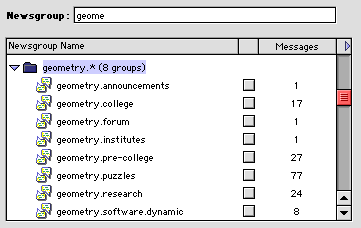
Note that the Newsgroup Name area also shows the number of messages currently
posted to each group in the list. (As we'll see a little later, a check mark
will appear in the gray box beside the name of each newsgroup to which you
subscribe.)
Subscribing and Unsubscribing
Subscribing to a newsgroup is a very easy process.
Let's illustrate by subscribing to a newsgroup named hawaii.sports.
First locate the section of the Newsgroup Names list that corresponds to
groups that have something to do with Hawaii.
We could just scroll down the list until we come to a set of names that begin with the characters "hawaii," but we'll find what we're looking for faster if we make use of the search window just above the Newsgroup Name area (it's the text entry box to the right of "Newsgroup:"). By simply typing the letters "haw" in this box the list of group names is repositioned to the set of newsgroups that begin with these letters. Note: all newsgroup names use only lowercase letters and numbers. The search tool is case-sensitive, so be sure to use only lower case letters in your search strings.
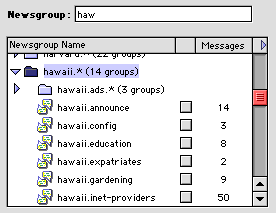
Now click the triangle to the left of the set of groups beginning with "hawaii" to expand the list and see the groups that begin with "hawaii.". Move down the list until you find the hawaii.sports entry. Click this entry to select it. Finally, click the "Subscribe" button in the subscribe window to the right of the list. That's it; you have now subscribed to the hawaii.sports newsgroup.
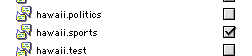
You should now see a check mark in the gray square to the right of the hawaii.sports newsgroup name in the Newsgroup Name window:
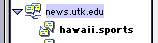 You can, if you
wish, subscribe to additional newsgroups. When you are finished, click
OK. After the subscribe window closes, you should see the name of the
newsgroup(s) to which you have subscribed now added under the name of
your news server in the Folder Name panel. The next time you open the
newsreader you can immediately go to the hawaii.sports newsgroup by
simply clicking this name in the Folder Name panel.
You can, if you
wish, subscribe to additional newsgroups. When you are finished, click
OK. After the subscribe window closes, you should see the name of the
newsgroup(s) to which you have subscribed now added under the name of
your news server in the Folder Name panel. The next time you open the
newsreader you can immediately go to the hawaii.sports newsgroup by
simply clicking this name in the Folder Name panel.
To unsubscribe from a newsgroup, just place your mouse cursor over the group's name in the Folder Name panel, and then press and hold the mouse button. When a menu pops up, select the "Unsubscribe" option in the list. You'll be asked if you really want to unsubscribe from the group. If you do, just click OK. The prompt window will close, and the newsgroup name will be removed from the Folder Name panel.
Managing Newsgroup Messages
Now you know how to subscribe and unsubscribe to newsgroups, and how to read
messages in newsgroups. An important question is what to do with those
messages after you have read them.
The newsreader has many sophisticated ways to save messages to files, to forward them to someone else, to "thread" them, which means to group messages that are related to each other, and so on. We will let you explore those possibilities on your own (see the help files).
However, before leaving this section we will point out one important management feature: The "Mark All Read" command that may be accessed from the "Message" menu (see adjacent figure). Note that the newsreader window must be selected in order for the Message menu to be available.
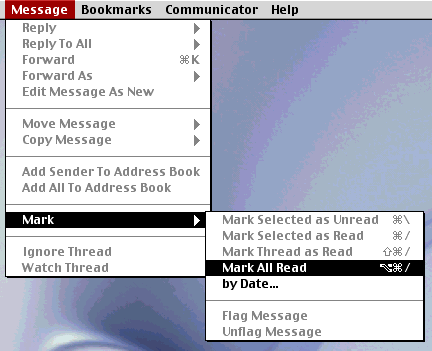
This marks all messages in the selected newsgroup as "read";
thus, only new postings will be displayed the next time you look at this
newsgroup (if you have selected "Unread" under the
"View / Messages" submenu).
This can be important, since
the more popular newsgroups average hundreds of postings per day.