

Movie Files | Adding Effects


Adding Effects
By clicking on the Effects' button underneath the Shelf, you will see a list of effects similar to the ones in this image.
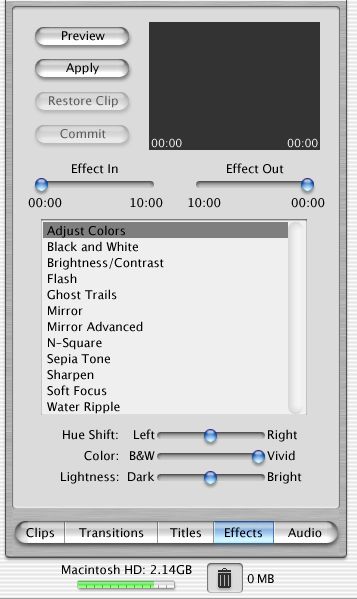
You can preview the effect before applying it to a clip or area of a clip. First, make sure there is a clip in the Clipviewer. Click on one of the effects and a preview will show in the small window. To see it in the Monitor, click the Preview button.
These visual effects can be added to one clip or multiple clips. For multiple clips, hold the shift key down while clicking the other clips wanted. If an effect is wanted only on part of a clip, that part of the clip will first need to be highlighted in the Scrubber bar area. When the effect is applied, the area to the left and right of the highlighted area will be made into two separate clips and the effect will be applied only to the highlighted area.
Unless you fine tune it, an effect starts at the beginning and stops at the end of the clip. The Effect In and the Effect Out sliders are controls that can be used to fine tune when the effect starts and ends in the clip. Colors can also be adjusted by using the three sliders under the list of effects.