

Movie Files | Transitions


Transitions
By clicking on the Transitions button underneath the Shelf,
you will see a list of transitions similar to the ones in the image below.
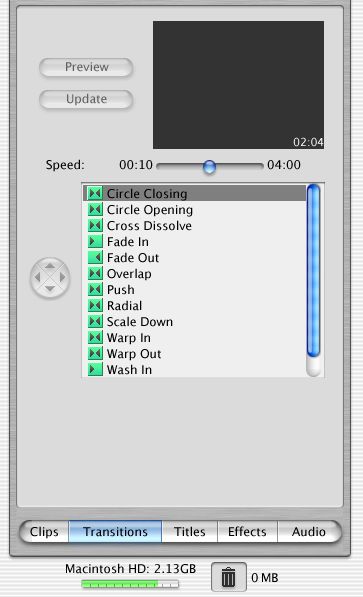
By clicking the name of the transition, it will play in the small window above the list. By clicking the Preview button, the transition will play in the Monitor. The amount of time that this transition lasts is dependent on where the Speed slider is positioned. The time frame can be from ten frames to four seconds.
Adding Transitions
Except for the Fade and Wash transitions, a transition can't go at the beginning
or end of the Movie. It must fit between two clips. To add a transition is as easy as
clicking on the name or icon in the transition list and dragging it between the two clips.
It can also be added by clicking on the preview window and dragging it down between the two clips.
At that time a small icon will appear between the clips and a tiny red bar will move under the icon. This is said to be rendering the transition. If the effect is not what you hoped, all is not lost. The transition can be edited.
Editing Transitions
A transition can be edited easily. The duration can be changed and a new transition can replace the one already rendered or the transition can be deleted. Click once to select the transition icon in the Movie track. The duration of the transition can be increased or decreased by moving the Speed slider and then clicking the Update button.
The transition that has already been rendered can easily be exchanged for a different one. To do this make sure the transition icon is still selected. Click on a different transition to choose it and then click Update.
To remove the transition altogether, click once on the transition icon in the Movie Track and choose Edit....Undo or press Delete.