

Image Files | Animated GIFs


Animated GIFs
Files in GIF format normally display as static images. However, it is possible to construct animated GIF files. These contain a set of GIF images that most browsers (e.g., Netscape 2.0 and beyond, or Internet Explorer 3.0 and beyond), can display in sequence, thereby producing animation.
Some Examples of Animated GIFs
The images shown to the right and left are
examples of simple animated GIFs. If they aren't moving, try reloading the
frame. If they still don't move, your Browser may not support animated GIFs;
get one that does!
 |
 |
Animated GIF files have an advantage over Java and CGI script animations in that they do not require server or client software beyond that of the basic Web server and browser. Thus, they are the simplest means to implement animation. Of course, they can only produce animation; if one wants to go beyond this (for example, to add sound to the animation, or to allow the user to interact with the image) it is necessary to go to more sophisticated methods like CGI scripts or Java.
The two examples shown above
illustrate the use of animation to amuse and to catch
a reader's attention. But animation can serve a more direct educational purpose
too. For example, here are three examples taken from an
introductory
astronomy
class:
Notice particularly that the first two
of these examples illustrate in simple terms
concepts that would be much harder to convey
using only words or even static pictures.
Example: Constructing an Animated GIF
We are going to illustrate the construction of animated GIFs by assembling
the first 4 frames of the "Singer Hornets"
example given above into a simple movie using
Animagic for Windows (which is shareware).
In this tutorial, we will assume that the problem of creating the individual
frames is a separate one that you have already solved (more about that below).
Typically the frames to
be used might be collected from somewhere else, or produced with a drawing or
painting program and saved in (or converted to)
256-color files in the formats that Animagic recognizes:
GIF, PCX or BMP.
Collecting the Images
The first step in using Animagic is to collect the images that will
comprise the animation.
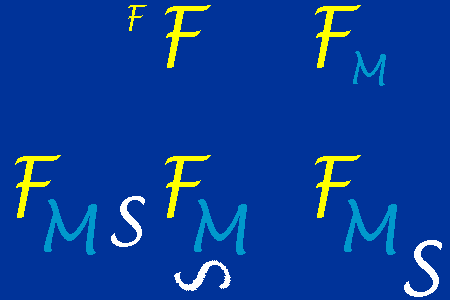
Here are the 4 images that we are going to use in the example:




Make a subdirectory in your main folder called "amimages". Now, beginning with
the leftmost image and proceeding to the right and down by rows, copy each of
these images into this folder by placing the mouse cursor over the image,
holding the right button down and selecting "Save Image As", and placing the file
into the directory "amimages" with the default file
name (these should be fig1.gif, fig2.gif, ... fig4.gif). As the names
indicate, these are GIF files.
Assembling the Frames
Hide the browser window and open Animagic.
You should have a display labeled "Frame List", as in the following figure:
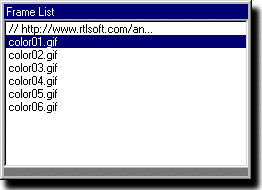
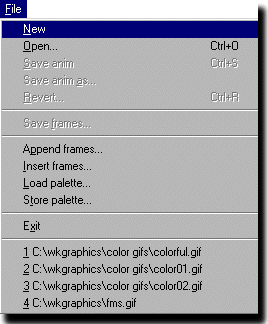 The Frame List display should have no entries in it. If, as in the above figure,
this is not true, select "New" from the "File" pulldown menu to clear it (see
figure to the left). Now, add the GIF files that will compose the animated GIF
to the frames display in the order that they should appear.
To do this, use File/Open in Animagic; in the window that appears browse
to the folder where you've placed the four files, and select them.
(You only need to click on fig1.gif and then press the shift key and
click on fig4.gif;
all four files will then be selected. Be sure not to press the shift
key until after you've clicked the first file name.)
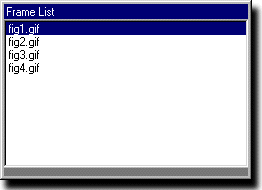
You should now see all four file names listed, each in quotes, in
the "File name" field of this Animagic window as shown below:
The Frame List display should have no entries in it. If, as in the above figure,
this is not true, select "New" from the "File" pulldown menu to clear it (see
figure to the left). Now, add the GIF files that will compose the animated GIF
to the frames display in the order that they should appear.
To do this, use File/Open in Animagic; in the window that appears browse
to the folder where you've placed the four files, and select them.
(You only need to click on fig1.gif and then press the shift key and
click on fig4.gif;
all four files will then be selected. Be sure not to press the shift
key until after you've clicked the first file name.)
You should now see all four file names listed, each in quotes, in
the "File name" field of this Animagic window as shown below:

Now select "Frame rate" in the "Animation" menu to set the speed at which your new animation will play. This menu selection opens a display that looks like the following:
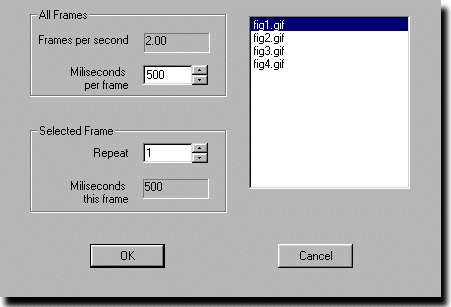
You can play your animation by either selecting "Play" in the "Animation" menu, or by clicking on the button with the triangle in the tool bar. If you wish to speed up or slow down the animation, just use the Frame rate display again.
Rearranging Frames
The frame sequence in the Animagic window can be rearranged
by:
Alternatively, you can clear the contents of the Frame List window by choosing "New" from the File menu and then use File/Open for only the file that will be your new first frame. Then use "File/Append frames" to load each subsequent frame, one at a time, in whatever order you desire the frames to be played.
Setting Animation Options
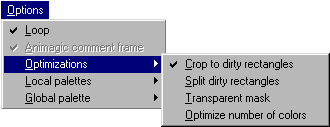 Before making an animation, we may set a variety of options
that control how the animation will run. These can be accessed from the
"Options" pulldown menu (see figure at right). A more detailed account of the
options and their effects (and, of course, of many other features of
Animagic)
is provided in the program's included documentation.
For our example we will
leave all settings at their default positions, except
Toggle "Optimizations/Crop to dirty rectangles"
so that a check mark shows beside it, as in the adjacent figure.
This tells Animagic to keep only things that change
in succesive frames when it builds the animation, which
can reduce the size of the final animation file by a substantial amount.
Before making an animation, we may set a variety of options
that control how the animation will run. These can be accessed from the
"Options" pulldown menu (see figure at right). A more detailed account of the
options and their effects (and, of course, of many other features of
Animagic)
is provided in the program's included documentation.
For our example we will
leave all settings at their default positions, except
Toggle "Optimizations/Crop to dirty rectangles"
so that a check mark shows beside it, as in the adjacent figure.
This tells Animagic to keep only things that change
in succesive frames when it builds the animation, which
can reduce the size of the final animation file by a substantial amount.
Note that by default an animation runs continously, looping over and over. You can have the animation stop after a certain number of iterations by using "Loop Count" in the Animation menu. (Loop is selected by default in the Options menu. If you simply toggle it off and save the animated gif, the animation will play only once in your browser.)
Testing the Animation
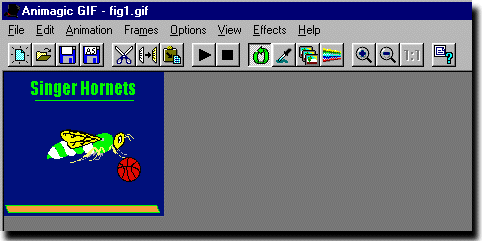
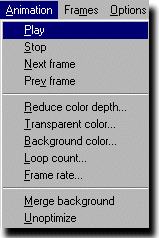 As we have already noted, the
animation may be checked directly in Animagic by choosing
"Play" from the "Animation" pulldown menu (see figure at left),
or by using the arrow button in the toolbar. This should pop up a window,
like the one shown below (where you also see the arrow button), in which
the animation runs.
It should loop continuously, since we chose that option.
As we have already noted, the
animation may be checked directly in Animagic by choosing
"Play" from the "Animation" pulldown menu (see figure at left),
or by using the arrow button in the toolbar. This should pop up a window,
like the one shown below (where you also see the arrow button), in which
the animation runs.
It should loop continuously, since we chose that option.
You may also display the animation a step at a time: halt it by pulling down "Stop" from beneath the "Animation" menu (or the black square button in the toolbar), and then step a frame at a time by selecting "Next frame" from beneath the "Animation" menu.
Saving the Animation as a Link
When you are happy with the animation, save it as an animated GIF file: from
the "File" pulldown menu select "Save anim as" and save it in your folder under the
name amtest.gif. Now let's see if we can display it with the Web
Browser.
Open your homepage file and use the mouse to copy and
insert the following text into a convenient place in the file:
<h2> Animated GIF Examples </h2> <center> <a href="amtest.gif">Example 1</a> <p> </center> |
Save the file and open the Web Browser (reload if necessary). You should
now have a link labeled "Example 1" in your homepage
that displays the permanently looping
animation when you click on it. (As a check, the animated GIF that you
have just made should
look like this.)
How to Make the Original Frames
We have intentionally left open the question of how the original frames are
produced, since that will vary with your preferences and the
availability of drawing and painting software on the computers that you
normally use. The examples shown here were drawn with Freehand
(which
is a relatively expensive but professional-quality drawing program), simply
because it was available. Much less expensive programs
would have worked as well for a simple example like this.
In addition, many programs that you may have already, such as Microsoft Works or Paint Shop Pro, include rudimentary drawing programs that are often adequate for simple animation frames. The main criteria are that the programs be able to output in GIF, PCX, or BMP formats (or a format that can be converted to those by another piece of software).
Note that in simple animations the successive frames are very similar to each
other. One can use that to advantage in making the frames by starting
with a master and then just making small modifications to obtain each successive
frame. For example, a simple revolving image can be constructed using
a single drawing that
is just rotated in each successive frame, and the motion of an object can be
simulated by drawing the object once, and then just changing its position in
successive frames. Another option to simulate motion
is to make the frames all copies of the same image,
and then to use the capability under the "Frames" menu to offset each
successive frame from the previous one by a specified amount to simulate motion.
However, in this case one may have problems with the redrawing of the
background.
Making Your Own Animation
The preceding example shows you how to make an animated GIF;
you now have all the expertise required to make your own animated
GIFs, and you know how to link to them. So what are you waiting for!
Start thinking about the animation you would REALLY like to put on your homepage, and read the documentation included with Animagic (or check the program's online documentation) to see all the additional cool features that we didn't even discuss in this Tutorial (for example, how to create all sorts of special effects such as fades and dissolves in an animation).
However, before leaving this subject,
let's temper the enthusiasm slightly with the
observation that gee-whiz gimcracks
like animation are most effective when used
sparingly if their primary purpose is to attract the reader's attention.
Don't overdo it, or your readers will be distracted from the
content by the flashing lights, or (worse) become so annoyed that they leave
and don't come back. Use some taste, and remember that there is nothing
whatsoever wrong with making your page attractive and interesting, as long
as the
bottom line is CONTENT.
Animated GIF Archives on the Web
It's generally more fun to make your own, but you can also download a variety
of animated GIFs from the Web (from sites that give permission to do so).
Here is a
gallery of animated GIFS.
You can find many others by using a
search engine.
The animated GIFS at these sites can also give you some ideas about
making your own.