

Chat Groups | Your Own Chat Group


Your Own Chat Group
In the preceding section we discussed organized chat groups associated with Internet Relay Chat. As noted there, such groups have potential applications in K-12 education, but one must separate the educational wheat from considerable chaff in most chat groups. An alternative that can ensure higher educational content in internet chat is to run a chat group from your own computer. This is relatively easy, as we now demonstrate.
Any Windows PC connected to the Internet and running the TCP/IP protocol can be turned into a chat server simply by launching the shareware program WircSrv. (Individual users may employ the shareware version for leisure use, but must acquire a registered licensed version for work use.) Our discussion will use version 5.04s of the program. We will discuss only the basics; a more detailed set of instructions may be found in the documentation and FAQ that are provided with the program and that can be accessed from its Help menu. The FAQ is also available online.
What is WircSrv?
WircSrv lets a PC serve as a
simple internet chat room.
Once WircSrv is running, multiple
users can connect to your PC with an IRC client and have online
discussions.
Notice that computers making connections to the chat server need
only to run an IRC client, not WircSrv.
WircSrv is very easy to use. It only needs to be configured before the first time it is run. The configuration is performed by filling in a set of boxes in one or more windows that are linked to WircSrv's main window. Depending on your security requirements, you may only need to provide a bit of information about the name of the computer that you will use as your server, and the person who will act as the main server administrator. (The latter is contact information for users in case they should want to get in touch about your server.) You may also use these windows to have WircSrv limit access to your server, as described below in the section on address filtering. After this initial setup, the program only needs to be opened for your chat server to be up and running.
Since the chat users communicate with the server through their IRC clients, we will devote most of the rest of this section to a desciption of using such a client.
Connecting with a Client
We will assume that WircSrv is running on a Windows PC having the IP
address astroweb.phys.utk.edu.
Joining a chat session on that server is then
a simple matter of launching a Windows IRC client
and connecting to that address.
In this discussion we will use the shareware program mIRC
(version 5.1) as the client.
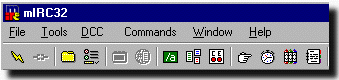
To connect to the server, start the client by double clicking its icon. The main mIRC window will open; in its title bar are the program logo and program name (e.g., "mIRC32" for the 32-bit version of the program). Below this is the row of pulldown menus, and below this a row of buttons, as shown in the figure above. Most of the basic tasks of participating in IRC conversations are accomplished by typing in the windows, but the program has a great many options to let you customize the way it works. Many of the customization options and some IRC commands are accessible from either the menus or the buttons.
 Inside the main window is the Status window; its name is in its title bar.
(Note that you can reposition this window in, but not move it out of,
the main window.
This is true of all the new windows opened by mIRC.)
The Status window is divided into two parts. The top portion
shows messages sent to you from the server. Below this is a one-line
window in which you type messages to the server.
Inside the main window is the Status window; its name is in its title bar.
(Note that you can reposition this window in, but not move it out of,
the main window.
This is true of all the new windows opened by mIRC.)
The Status window is divided into two parts. The top portion
shows messages sent to you from the server. Below this is a one-line
window in which you type messages to the server.
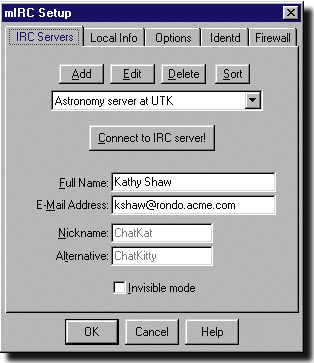
Now go to the mIRC "File" pulldown menu and select "Setup";
in the window that appears, click the IRC Servers tab.
Fill in the blanks for your Full Name, E-Mail Address, and Nickname
(and optionally, an alternative nickname in the "Alternative" field).
(See adjacent figure.)
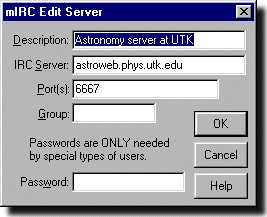 Now click the "Edit" button to add info for your new server.
In the resulting "mIRC Edit Server" window
add something informative for "Description"
(e.g., "Astronomy server at UTK" as in the figure).
Enter astroweb.phys.utk.edu for the IRC Server.
Make sure that Port is set to 6667 (this is the port being used by
WircSrv on astroweb.phys.utk.edu and is the most commonly
used port for IRC servers).
Click "OK" to return to the main part of the IRC Server window.
Then click "Connect to IRC server".
(Or click "OK", then go to the "File" menu and select "Connect".)
Now click the "Edit" button to add info for your new server.
In the resulting "mIRC Edit Server" window
add something informative for "Description"
(e.g., "Astronomy server at UTK" as in the figure).
Enter astroweb.phys.utk.edu for the IRC Server.
Make sure that Port is set to 6667 (this is the port being used by
WircSrv on astroweb.phys.utk.edu and is the most commonly
used port for IRC servers).
Click "OK" to return to the main part of the IRC Server window.
Then click "Connect to IRC server".
(Or click "OK", then go to the "File" menu and select "Connect".)
The nickname that you enter above is the name by which you will be known in the chat session. In the example shown here the user has chosen the name "ChatKat". You should choose a name that is no more than nine characters long. If your choice is longer, it will be truncated to nine characters.
mIRC will now connect to the server and update the title bar of the Status window to include your nickname and the address of the server to which you have connected, as illustrated in the figure below. The window's large panel will display a welcome message from the server (also known as the Message of the Day, or MOTD).
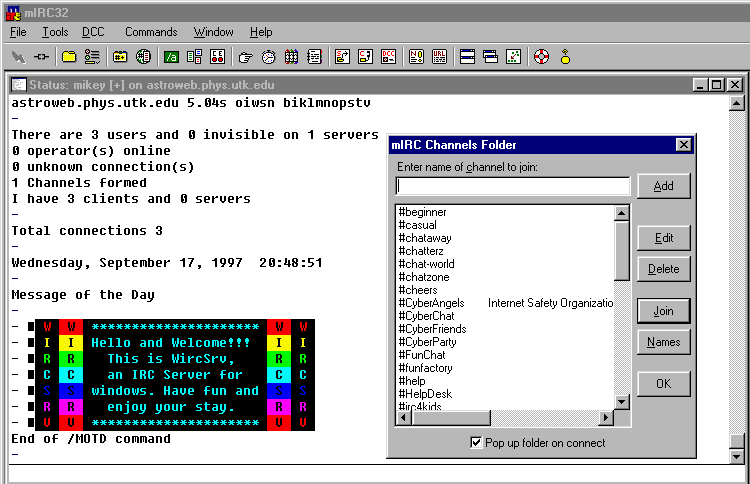
At this point mIRC also opens a window called "mIRC Channels Folder", which has a list of names. You can save the names of channels that you visit frequently here and then go directly one of them upon starting mIRC by double-clicking the name in the list (or by selecting it and clicking "Join"). But for now, just click the "OK" button to dispose of this window.
Channels
The chat sessions are organized into channels which allow conversations on
various topics to be conducted in parallel. Generally, chat participants see
only the chat in the channel they are presently in.
(Server adiminstrators can send messages to multiple channels.)
Entering /list in the lower part of the Status window will bring up another window in which are listed the channels currently present on the server, and the number of participants in each. You can enter any channel by double-clicking its name in this list. Whenever you join a new channel, mIRC opens a new window (again inside its main window). This "channel window" consists of three panels. The largest one shows the conversation in the channel, i.e., all the messages typed by everyone in the channel. Below this is a one line box in which you type the messages that you want to send to the other people in this channel. The panel at the right of the channel window shows the nicknames of all the people currently in the channel. The figure below illustrates the three panel window that would be opened when a user entered the "AstroStuff" channel.
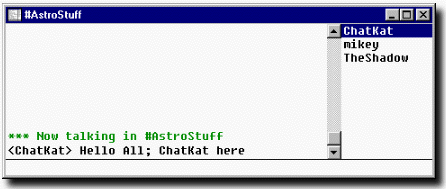
You may notice that one or more of the nicknames in this list is preceded by an "@" symbol. This signifies that this person is a "channel operator" or "channel op", who has special authority in this channel (is able to kick out offending users, for example).
You can also enter a channel by using the "join" command. For example, typing /join FlyFishing in the one-line window at the bottom of the mIRC Status window will cause another window, this one for the channel named "FlyFishing", to be opened inside the main mIRC window. Yet another means by which you can always enter a channel is by using "Join channel" in the "Commands" pulldown menu. If the channel you name either with the join command or when using the "Join channel" menu option does not exist, it will be created and you will be made its channel op.
You can participate in conversations in more than one channel at a time, if you can keep track of the different trains of thought. A separate three panel channel window will be opened for each channel that you join.
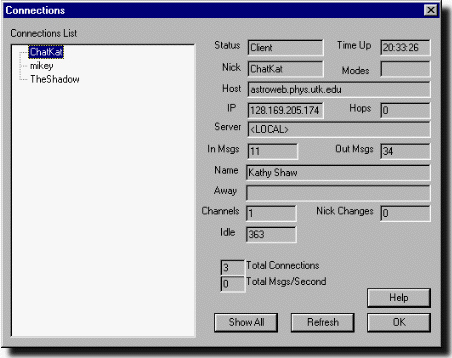
All of the current users are summarized in the "Connections" window on the server (see figure below), which is accessed by clicking the "Connections" button in the main WircSrv display. The right side of this window shows the indicated information for the nickname that is selected in the list on the left. Note: this window is not visible to the chat participants who have connected to the server by the IRC client; it is a window displayed on the server monitor (astroweb.phys.utk.edu in the example we are using). This window allows the server administrator to keep track of who is using the server.
Chat Messages
In essence, there are two classes of things that you can do in a chat session.
(1) You can type message
text using the keyboard that appears literally as typed, with
a nickname tag indicating "who said it", and
(2) you can issue commands that cause
some action to be taken.
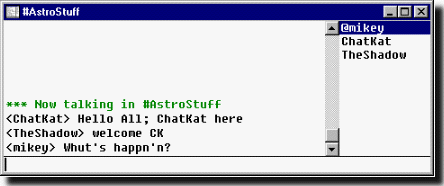
The most common user input is simply to type text. For example, the adjacent figure shows portions of a (rather inane) conversation, as displayed on ChatKat's monitor. ChatKat types the message "Hello all; ChatKat here" in the bottom portion of the "General" channel's window. As soon as she does a return, this message is displayed on all terminals connected to ChatKat's channel, preceded by the nametag "<ChatKat>" indicating who said it (the message also appears in the top portion of the window for this channel on ChatKat's monitor because when she pressed return the message was echoed to everyone on the channel, which includes ChatKat). In this example, TheShadow and mikey respond with messages of their own, which appear on ChatKat's screen because she is on the same channel as they.
Chat User Commands
The other thing you can do is issue commands that cause some action to be
taken.
These commands must be preceded by a slash ( / ) so that the server
will recognize that they are not just part of message.
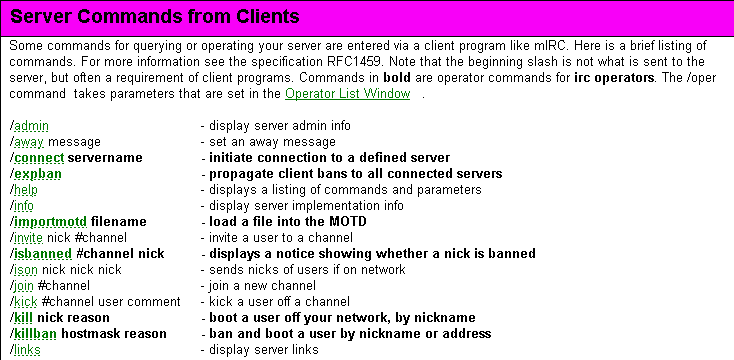
Typing "/help" brings up a table of contents for the mIRC help pages. This TOC includes a link to a page that explains a nuber of the basic IRC commands supported by the client. A more extensive list of IRC commands (albeit with less thorough explanations) can be found by accessing the WircSvr Help menu, a protion of which is shown in the figure in the next section.
IRC commands can be divided into two general categories: those available to all users and those reserved for server administrators. The /list and /join commands that we've already discussed belong in the first class, as do directives such as /part (leave a channel), /whois (get information on a user with a particular nickname), and /nick (change your own nickname). Most of the commands covered on the mIRC help page belong in the first category. The WircSvr page lists commands in both categories, with the administrator commands appearing in bold type there.
Chat Administrator Commands
Clearly, there are some aspects of your IRC server's operation that you
wouldn't want just any user to be able to control (if only to prevent
anarchy).
For this purpose,
WircSvr has a set of adiministrative, or as the program calls them,
operator, commands. These commands can only be used by someone who has been
given permission to use them; such a person then becomes known as an
IRC operator, or ircop.
To become an ircop, a user must give the command /oper userid pass, where userid and pass are a valid username and password pair recognized by the server. In addition, the /oper command will work only if a user (who has supplied a correct username and password) uses a client from a particular ip address (or from one of a particular set of addresses). The valid user name, password, and permissible ip address are all set in the WircSrv setup window. (If you set up the server, you can, if you wish, arrange that no one but you can be an IRC operator. Or you can arrange that people you trust can become operators, and thus take some or all of the responsibilities for making sure your server is used in a proper manner.)
Please note than an ircop should not be confused with a channel op. The latter has certain special powers within a single channel. An ircop, on the other hand, has control over the functioning of the entire server.
The figure below shows a sample of the WircSvr help page for IRC commands. As noted earlier, the commands that may be used only by an ircop, are in bold.
Address Filtering and Remote Control
In addition to the set of administrator commands, WircSrv
lets you
maintain Client Accept and Client/Server Ban lists
so the program can
allow or block
access from particular IP addresses, or entire sets of IP addresses.
(The accept list may also be set up up to require that people attempting
to connect from even the "good" addresses have to provide a password
before they can connect to the server.)
Since administrative commands are issued by IRC client,
an administrator
can control the chat server from anywhere having internet access. Thus, for
example, an administrator can leave the chat server running and log in
remotely to monitor the chat (and to take appropriate actions to control the
session, if necessary).
Some Ideas for Chat Groups
It is not difficult to think of potential K-12 applications for a chat server.
For example, you could organize a student chat session every Tuesday night from
6pm-8pm on a selected topic (say, "current social issues"). You could even
have various topics running
in parallel, by assigning them to different channels.
Participation could be as limited as the members of a single class or school, or as broad as including students from other countries (time zones and language barriers may present a problem). The only requirement to access the chat session would be possession of an IRC client and a knowledge of the IP address where you have the WircSrv program running, the "ground rules" for the session, and the corresponding times. The address, rules, and schedule could be publicized locally, or more broadly by electronic means (email, mail lists, newsgroups, . . .). As administrator you would have the capacity to monitor the chat session and to block access if uninvited participants should show up, or to silence otherwise legitimate users who abuse the rules of the session.
Another example would be an organized chat every week between
your class and one in another country. This could be with the same
class each week, or with a different one,
depending on how ambitious you were
in contacting (by email, of course!) partner classes for such sessions, and
dealing with difficulties like language and timezone problems.
Here are some
internet pen-pal
links that may be a good starting point for organizing such activities.
So What Are You Waiting For?
These are meant to be representative examples. Surely you can think of
better ones without very much effort! In essence,
IRC with a server such as WircSrv
can give
you the equivalent of a free long-distance telephone service in your classroom
that allows your students to converse in real time with their counterparts
anywhere that the Internet reaches.