

Telnet | Microsoft Telnet


Microsoft Telnet
The program that we are going to use to implement telnet in this discussion is Microsoft Telnet v1.0, which is included as part of the Windows 95/98 operating systems. To find the program, use the "Find" or "Search" utility on the Microsoft Main Menu.
Initiating a Telnet Session
When you launch MS Telnet, a terminal window is
opened. This is where you will be able, once connected, to type commands
directly to a remote computer.
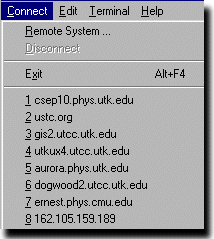
Move your mouse to the top of the window to display the
"Connect" pulldown menu; it should look similar to the figure at the right.
Drag down to highlight "Remote System", and release. The resulting popup
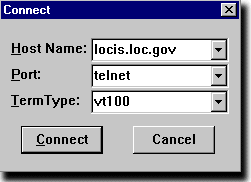
"Connect" login screen looks like the figure below.
You can make a connection to the Library of Congress by typing into the "Host Name" window of this popup the telnet address, and clicking the "Connect" button at the bottom of this window. In the example shown, the address is locis.loc.gov.
Try typing this address into the login window for MS
Telnet and see what happens. You may exit from the resulting telnet
session by choosing "Disconnect" from the telnet "Connect" menu.
(This leaves the telnet window open so you can then use "Remote System" in
the menu to log into another address if you wish. If you want to leave the
program, select "Exit" from the "Connect" menu or click the close button
at the upper right of the telnet window.)
This is an example of a telnet
login that does not require a password, because
it has been set up to allow "Anonymous Logins"; that is, it
permits logins from people who
do not have accounts on the computer with the IP address
locis.loc.gov.
Other Microsoft Telnet 1.0 Features
Microsoft Telnet V1.0 is a very straightforward implementation of telnet, and as such does not have a lot of bells and whistles. One feature that you may want to take note of is the fact the addresses for recent connections are stored at the bottom of the "Connect" pulldown menu, as seen in the first figure in this section. So if you wish to go to one of these addresses, you can bypass the "Connect" popup by simply dragging your mouse down to highlight the desired address and releasing.
Another feature worthy of note is that you can have more than one MS Telnet window open at the same time, so that you can have multiple concurrent login sessions on the same or different remote computers. The window title bar shows the address that the terminal window is connected to. The "Preferences" item under the "Terminal" window allows you to set some display characteristics, such as text font and cursor type, of each MS Telnet window. In addition, this item lets you set the background color of the window, which may also help you keep track of where you are if you are running multiple login sessions.
At one time telnet was a very important means of obtaining information on the Web. This function has almost entirely been taken over by Web browsers now. It is still important, however, as a way to log into remote machines, particularly those running Unix operating systems. If you have an account on such a system, you can use telnet to log into your account from any machine supporting telnet on the Internet.