

Sound Files | Creating Sound Files


Creating Sound Files
Most newer personal computers (and many newer workstations) come out of the box with simple hardware and software for using a microphone to record your voice and other sounds. The sound quality of files created in this manner will not rival recordings made in a sound studio, but this equipment does provide a means for you to create files with personally customized messages that you can include on your Web pages.
Creating a Sound File with Windows
You can record sound on your PC if it has a microphone and you have the program Sound Recorder. (In Windows, Sound Recorder is located under Accessories menu of Start / Programs. You may need to look under the "Multimedia" or "Entertainment" submenu.) Here is a brief intro to making a recording:
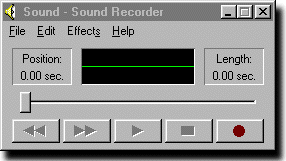
 button to start recording.
 button when you are finished.
The resulting file is in WAV format.
If you want to make another recording and save it a different file, be sure to choose
"New" under the File menu again before you begin the next recording. If you forget
to choose "New", the next recording will be placed in the same file as the previous
one (the second recording will begin right after the end of the first one).
Linking to Your Sound File
The sound file that you have just produced can be played from a browser link. For example, use
<a href="file.wav">Sound File</a> |
if file.wav
was the name of the file in which you saved the recording.
If a browser is
configured to play audio files of this type, the sound should begin when this link is clicked.
Streaming Sound & Audio Players
A more efficient way to transmit sound on the Web is to stream it, which means that the sound plays as it is being loaded, rather than waiting for the full file to download. In the next section we discuss one way of playing streaming sound. Also, the program Flash discussed later has the capability to create streaming sound files.