

Newsgroups | Subscribing to Newsgroups


Subscribing to Newsgroups
In the previous section we saw how to use a newsreader to browse messages posted to newsgroups. How can we add and remove newsgroups from the list displayed in the browser?
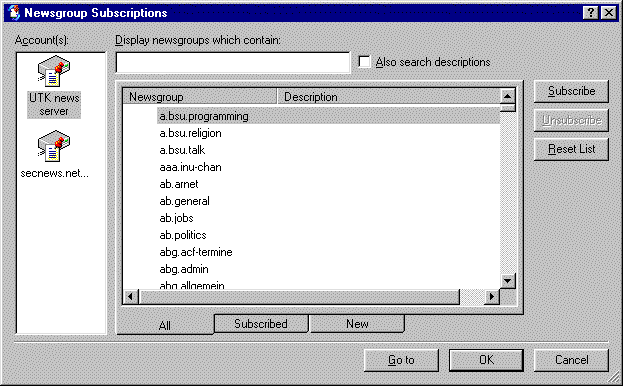
The first step in adding newsgroups to the list is to display all available groups. Recall that when the newsreader window first opens it has a single large panel on the right that shows the names of the newsgroups to which you have already subscribed. Above this list of subscribed groups are three buttons. Click the middle one (labeled "Newsgroups"). A new dialog box named "Newsgroup Subscriptions" should now open. When it does, click the "All" tab if it is not already selected. This will cause a list of all the newsgroups on this news server to be displayed.
Newsgroup Hierarchies
There are literally thousands of newsgroups to choose from.
What the various abbreviations in the newsgroup names mean may be determined by
consulting a list of
newsgroup
hierarchies. For example, from such a list one finds that hierarchies
beginning with "de." correspond to international German-language
newsgroups (of which there are almost 500 at the moment).
The Full List of Newsgroups
The beginning of the full list of a typical set of newsgroups is shown in
the figure above (in the large "Newsgroup" window of the "Newsgroup Subscriptions"
dialogue box) . Above the list of groups is a box labeled "Display newgroups
which contain". This is the input area for a search tool that digs through
the full list of groups and shows only the ones that contain the text
string that you enter in the box. For example, in the figure below we
show the 8 newsgroups under the "geometry" hierarchy:
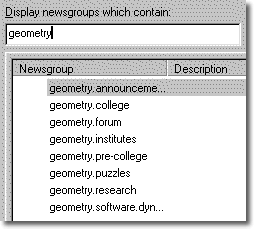
In this case the names of the 8 newsgroups in the geometry hierarchy
are rather suggestive of the subject matter addressed in the newsgroups
(this is usually, but not always, the case).
Subscribing and Unsubscribing
If we subscribe to a newsgroup, its name will be conveniently displayed in the "Folders" panel when the Outlook Express newsreader opens. This saves us the trouble of searching through the long list of all available newsgroups (though the trouble is reduced by using the aforementioned search tool) to find the ones we want.
Subscribing to a newsgroup is very easy.
First, find and select the desired group name in the list of available groups
(either by scrolling down the full list, or by typing a portion of the group name in the search
window). Once the desired group name is selected, the name will be highlighted.
Now simply click the "Subscribe" button on the right side of the "Newsgroup Subscriptions"
dialogue box. If you wish, you can subscribe to additional groups using the same process.
When you click OK at the bottom of the dialogue box, the dialogue disappears and the name
of each newly subscribed group is added to the Folders panel of the newsreader window.
(A small icon will also appear to the left of each subscribed group in the full list of available
newsgroups.)
Managing Newsgroup Messages
Now you know how to subscribe and unsubscribe to newsgroups, and how to read messages in newsgroups. An important question is what to do with those messages after you have read them.
The newsreader has many sophisticated ways to save messages to files, to forward them to someone else, to "thread" them, which means to group messages that are related to each other, and so on. We will let you explore those possibilities on your own (see the help files for your browser).
However, before leaving this section
we will point out one important management feature: The "Mark
All Read" command that may be accessed from the "Edit" menu.
This marks all messages in the selected newsgroup as "read";
thus, only new postings will be displayed the next time you look at this
newsgroup. This can be important, since
the more popular newsgroups average hundreds of postings per day.