

Newsgroups | Newsreaders


Newsreaders
A computer interface that allows one to read and post newsgroup
items, and to manage these items in some systematic way, is termed a
newsreader. There are various newsreader programs available, but
these days Web Browsers generally come equipped with their own
newsreaders (the newsreader is
either part of the browser itself or is part of an associated product that is included in the "deluxe"
version of the browser).
Some earlier versions of Microsoft Internet Explorer included a newsreader as part of the browser.
The full version of IE 5 includes the program Outlook Express. By default IE 5 uses Outlook Express for email and newsgroup access (although IE 5 can be configured to use alternative programs for email and news).
In this section we will illustrate the newsreader included in Outlook Express.
Starting the Newsreader
In your browser window, pull down the "Tools" menu and select "Mail and News/Read News". Your computer should then pop up a new window that looks something like the one shown below.
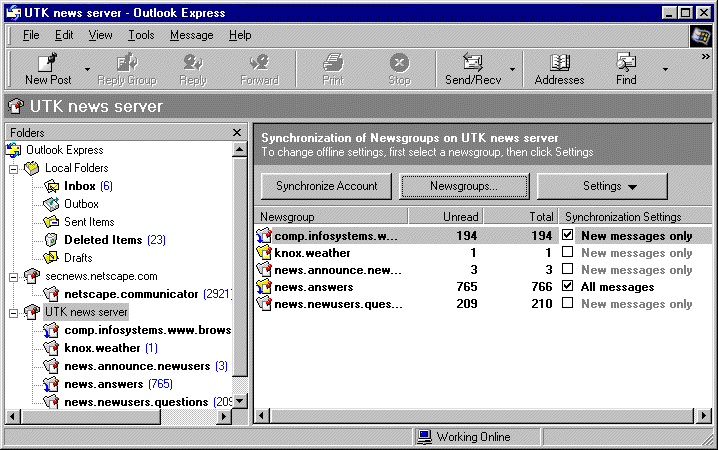
If you've already set up a connection to a news server, you should see a list of newsgroups to which you have previously subscribed displayed at the bottom left of the window (in the "Folders" panel) and initially in the large panel at the right side of the newsreader window (as shown above). Clicking the "Newsgroups" button in the large right panel brings up a dialogue window to display a list of all the newsgroups available on the server:
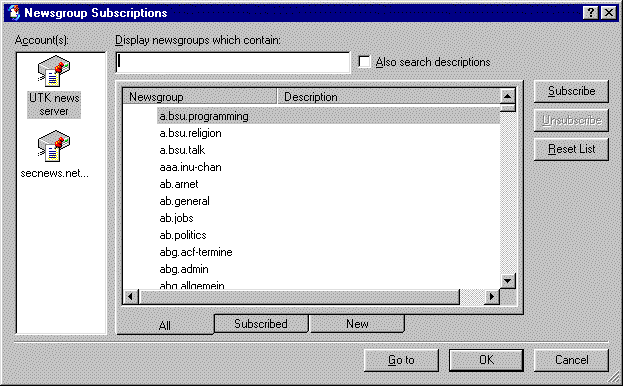
When a newsgroup is selected, either one of the subscribed groups or a new
group from the "All" tab of the "Newsgroup Subscriptions" window, the
list of subscribed groups in the large right panel is replaced by a two
panel display described in the next section.
The Parts of the News Window
Once a newsgroup has been selected,
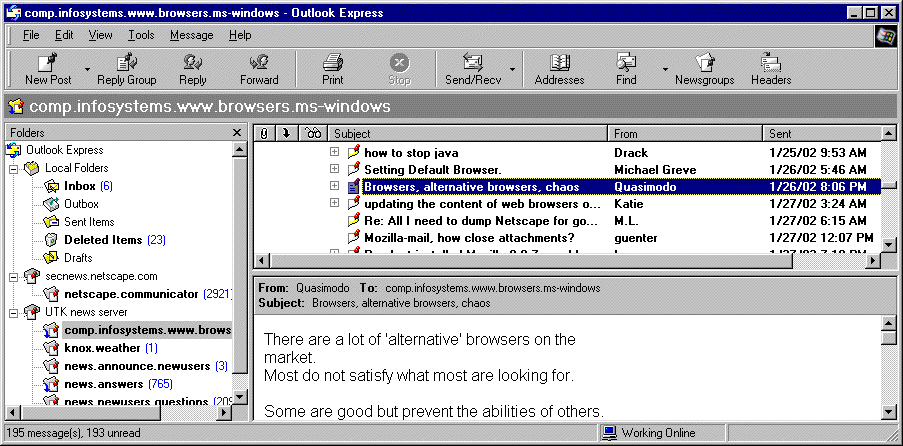
the newsreader window is divided into 4 basic parts:
Note: the Folders panel in the newsreader window of Outlook Express may also have links to various email folders if you've configured this program for accessing email. If you've configured more than one news server, there will be links to all of them in the Folders panel. (One of the configured news server is specified as the default. This is the one you automatically connect to when the newsreader first opens.)
In the example shown, 5 newsgroups are displayed in the newsgroup list:
The newsgroup comp.infosystems.www.browsers.ms-windows has been selected in the Folders panel by clicking with the mouse button, as indicated by the newsgroup name being highlighted. From the list of posted messages for this newsgroup a posting entitled "Browsers, alternative browsers, chaos", posted by a user (nicknamed) Quasimodo on January 26, 2002, at 8:06 PM has been selected, and the text of that message appears in the bottom panel.
Subscribing and Posting
That's about it as far as reading newsgroup messages are
concerned. The layout of your newsreader may be a little different, but the functions will probably be the same. However, there are a few more things that we need to learn
if we are going to use Newsgroups to their full advantage:
So the next sections will deal with these topics. As part of that, we will also say a few words about "net etiquette" or "netiquette": what is acceptable and what is not in postings to newsgroups (particularly unmoderated ones).