

Advanced Methods | Motion Tween


A Motion Tween
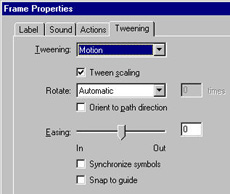 Now let's implement a motion tween. Right click on frame 1 in the
timeline and in the resulting dialogue box select the tab "Tweening",
and then in the pulldown tab beside "Tweening:" select "Motion Tween".
Leave the setting in the tweening dialogue box at their default values,
except be sure that "Tween scaling" is checked (see the adjacent image).
Click "O.K" to close the dialogue box.
Now let's implement a motion tween. Right click on frame 1 in the
timeline and in the resulting dialogue box select the tab "Tweening",
and then in the pulldown tab beside "Tweening:" select "Motion Tween".
Leave the setting in the tweening dialogue box at their default values,
except be sure that "Tween scaling" is checked (see the adjacent image).
Click "O.K" to close the dialogue box.
Key Frames
Tweening can take place only between key frames. We have but one key frame so far, so we have to add another. Go to the stage and use the arrow tool to position the rectangle where you would like the motion to start. Now go to the last frame that you entered in the timeline (let's say frame 50 for our example), left click on it, and choose "Insert Key Frame" from the resulting dialogue box ; be sure you insert a key frame, not a regular frame and not a blank key frame, which are other possible choices. An arrow should appear running between the two key frames in the timeline, indicating that a tween has been set up. Now, with the last key frame selected in the time line (left click on it if it isn't already selected), use the arrow tool to move the box on the stage to where you want it to be after the motion tween. Let's also expand and rotate the box: use the rotation tool and the resizing tool (see the top figure) to rotate the box by some amount and to make it larger than it was in the first key frame.
Testing the Tween
Now, we can test our tween. Under "Control" in the main menu, first select "Rewind", and then "Play" (you can also do this using the VCR type control panel, which can be displayed if it isn't already showing by choosing "Window" > "Controller" from the main menu). If you have done everything correctly, the box should move across the stage in a straight line, rotating and expanding as it goes. That is pretty impressive, isn't it! If it doesn't work, go back over the previous steps and be certain that you followed them exactly. Once you get the hang of it, animation with Flash is not hard, but you must do each step correctly for the tween to work. Save your work before proceeding to the next step