

FTP | Anonymous FTP | WSPing32


More About WSPing32
If your Browser is configured properly, it should have already launched a program to uncompress and unarchive the file that you have just downloaded. There should now be an icon named Wsping32.exe in your destination folder. Double click this icon, and a window like that shown in the figure below will open.
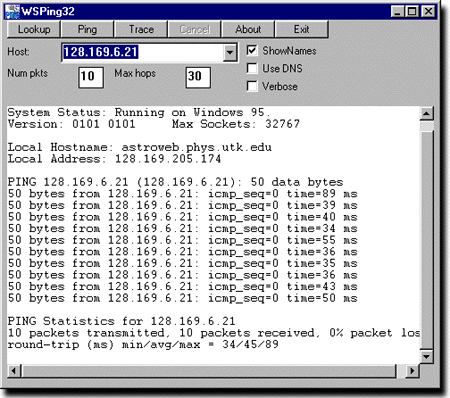
The program you have downloaded and unzipped is named WSPing32. It can be a good trouble shooting tool. If you experience a long delay in being able to connect to a remote computer, you can use this program to check whether or not that computer is currently alive on the net. You simply enter the ip number or DNS name of the computer in the box labeled "Host" and click one of the buttons at the top of the WSPing32 window. The program will then transmit a series of control packets to the indicated remote machine. (These packets carry no data but are used by the TCP/IP protocol to initiate communications between systems.)
The program's buttons perform the following functions:
-
Lookup -- Sends packets and
returns the "official name" and ip number of the computer.
This allows you to determine the ip number for a computer if you
only know its name, and vice versa.
-
Ping -- The program sends a series of packets, reports if
each transmission is successful, and gives the round-trip transit
time if a packet was received.
The "Cancel" button halts the pinging of the remote machine.
- Trace -- Sends a series of data packets to the remote computer; reports on the time taken for the transfer and whether or not all packets were successfully received. In addition, provides information on the route taken by the packets (i.e., what gateways the packets passed through enroute to the remote computer).