

Web Browsers | Menus and Controls


Menus and Controls
Browsers have menus and control buttons that can be accessed using mouse buttons. The following image shows a typical menu and set of control buttons (and the present URL address that the browser is accessing):
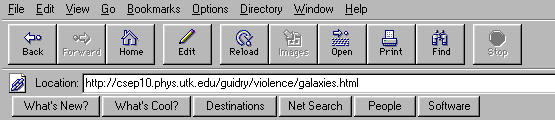
These menus
are called "pull-down menus", because when you hold the mouse button down
on an item in the
main menu a sub-menu is "pulled down" that has a variety of
choices.
Pulldown Menus for Browser Functions
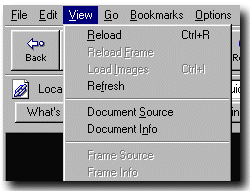 For example, the adjacent image from Netscape 3.0 for
Windows shows the pulldown submenu associated with the
"View" menu item. One selects a choice from the submenu by holding the mouse
key down and moving the pointer to the desired item, and then releasing the
mouse key.
For example, the adjacent image from Netscape 3.0 for
Windows shows the pulldown submenu associated with the
"View" menu item. One selects a choice from the submenu by holding the mouse
key down and moving the pointer to the desired item, and then releasing the
mouse key.
Actions on the submenu that are possible at a given time are in dark print; actions that cannot be performed at that time are shown in lighter or "grayed out" print. In the adjacent example, "Reload", "Refresh", "Document Source", and "Document Info" are available actions, while "Reload Frame", "Load Images", "Frame Source", and "Frame Info" are not possible at present for the document being displayed.
Keyboard Shortcuts
Notice that browser functions may also have a
keyboard shortcut defined.
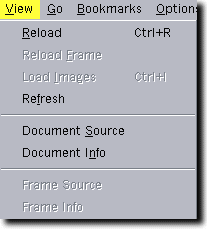
For example, in the adjacent image the keyboard shortcut
for the "Reload" command is "Ctrl+R", which means that holding down the "Ctrl"
key while hitting the "R" key will have the same effect as selecting "Reload"
from the menu with the mouse.
 It is useful to memorize some of these
keyboard shortcuts, since they can usually be implemented faster than using the
mouse to select from the menu. However, the exact keyboard shortcut
for a command is often browser and platform specific. For example, in the
adjacent image for the
Netscape 3.0 Windows browser, the keyboard shortcut
for the reload command is "Ctrl+R",
while the corresponding keyboard shortcut for the
Netscape 3.0 Macintosh browser is "apple+R",
where "apple" represents the key
with the clover-leaf
symbol on Macintosh keyboards.
Check the menus for your browser to see what the keyboard shortcuts are, and
memorize the more useful ones if you want to make your browsing more
efficient.
It is useful to memorize some of these
keyboard shortcuts, since they can usually be implemented faster than using the
mouse to select from the menu. However, the exact keyboard shortcut
for a command is often browser and platform specific. For example, in the
adjacent image for the
Netscape 3.0 Windows browser, the keyboard shortcut
for the reload command is "Ctrl+R",
while the corresponding keyboard shortcut for the
Netscape 3.0 Macintosh browser is "apple+R",
where "apple" represents the key
with the clover-leaf
symbol on Macintosh keyboards.
Check the menus for your browser to see what the keyboard shortcuts are, and
memorize the more useful ones if you want to make your browsing more
efficient.