

Image Files | Homepage Exercise


Making Screen Captures
In this section we are going to describe two different ways to capture screen images.
The two pieces of software that we shall use are the aforementioned
Paint and SnagIt, a screen capture shareware program for Windows. It is
often important to be able to capture all or part of the computer display
screen. For example, many of the illustrations in this tutorial started
as screen capture images made with SnagIt.
Print Screen and Crop
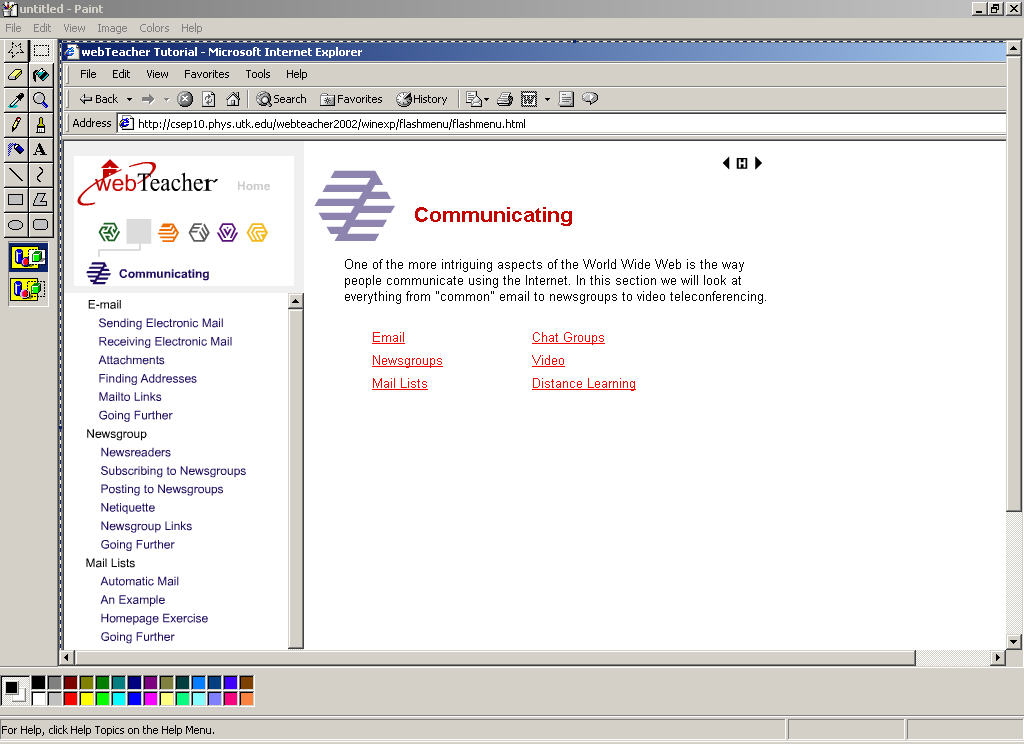
The Windows operating system incorporates a rudimentary screen capture system using the "Print Screen" key found on your keyboard. Whenever you hold down the "Shift" key and then hit the "Print Screen" key, whatever is on the entire screen at the time is saved to the Clipboard. For example, if you want to capture the screen below from webTeacher you would first display the page in your browser (the first page of the Communicating section), maximize the window so it fills the screen, and then while holding down the "Shift" key, press "Print Screen" on your keyboard.

Now open Paint and select "New" in the File menu. You can then load the image from the screen directly into Paint by pulling down "Paste" from the Edit menu. Before Paint loads the image it will probably tell you that the image is too large for the window and ask if you want the window opened large enough so the bitmap image can fit into it. Answer yes.
When the picture loads into Paint it will look something like this:
Once you have the screen image loaded into Paint you can use the Selection
tool  to
cutout specific rectangular parts of the picture you want. Or if you want an irregular
shape removed use the Free-form selection tool
to
cutout specific rectangular parts of the picture you want. Or if you want an irregular
shape removed use the Free-form selection tool  .
.
After you've edited the image to keep just the portion of the screen you really want, choose File / Save.
You will be prompted for a file name and file format for the output.
(Note that different versions of the Windows operating system offer different format options for saving the file. All versions should allow you to save your masterpiece as a BMP file; newer versions of Windows allow Paint to also save in GIF and JPEG format. Windows 95 and NT do not have these two
format options. )
Screen Capture with SnagIt
An alternative to using the Print Screen key and then cropping the image is available with SnagIt.
SnagIt is an inexpensive software program that allows you to capture
entire windows, arbitrary rectangular parts of the screen, text and video. It's available as a download from Techsmith.
SnagIt Capture Modes
Open SnagIt by going to the folder that contains the program and double-clicking its icon. The resulting display should look like the figure below. This window is divided into three basic sections.
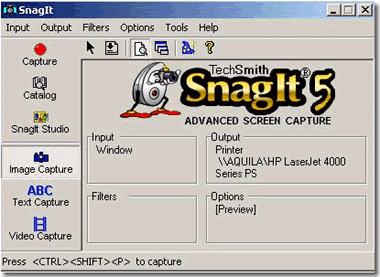
First, you control the program's method of operation by making selections from the menus shown at the top of the window.
Second, the hotkey combination that you press to initiate a capture is shown at the very bottom of the window. In the configuration indicated in the figure, you'd start a capture by pressing the <CTRL><SHIFT><P> keys simultaneously.
Finally, the remainder of the window shows the current selections
for each of the pulldown menu
topics. Three icons at the left of the window show the types of screen capture
that the program can perform:
One of these modes of capture can be chosen either by clicking one of the three icons (causing it to appear "pressed") or by making a selection from the "Tools" menu (again the corresponding icon will become "pressed" to reflect this selection).
The information shown to the right of the three icons reflects choices
made in the other menus. We'll discuss some of the items in these menus next.
(These selections indicated in the lower right
of the window must be made with
the menus; the fields in this part of the window aren't editable.)
SnagIt Input Menu
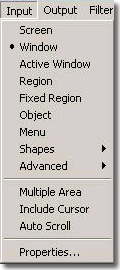
The "Input" menu, shown at left, allows you to specify what you want the program to
capture. For our purposes, the most important of the available options are:
This menu also provides an option to specify whether or not to include
the cursor in the captured image if it happens to be inside the capture area
(this works only with "Screen" and "Active Window" as input).
There is also the "Auto Scroll" option which allows you to capture an entire
window's contents instead of just the portion visible onscreen.
This can be useful, for example, in capturing all of a long web page
when only a portion of it is visible in a browser window.
Each of these last two commands is a toggle; a check mark appears besides it if the
option is chosen.
Output Menu
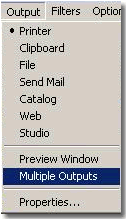
The "Output" menu, shown at left, tells SnagIt what to do with the screen
capture. For our purposes, the most important possibilities are:
This menu also lets you decide whether or not to see a preview of the captured
area before sending it on to the destination selected above.
Following Up
Snag-It has more features and uses than we have mentioned here. More information is available from the Techsmith web site and from the program's Help menu.