webTeacher Tutorial
The WWW Tutorial is entirely on-line, but you will probably
find it useful to have a
printed copy.
Permission is given to copy any parts of the tutorial that you desire, subject
to the
general usage provisions of the Tutorial.
Printing of WWW Tutorial from Mac Frames Display
Here is a set of instructions that we have found to give relatively
satisfactory results in printing the tutorial from a Mac. Of course, in the
printed copy you cannot access the links (!), and since some of the images are
screen shots they will not have very high
resolution when printed. Naturally, only if your printer is a color printer
will the images be in color. We suggest printing as gray-scale on other
printers if you have that option; images will generally print much better that
way.
Printing from non-Mac computers will depend on the details for those systems. If you are configured to print directly from the browser, the instructions will probably be rather similar to these. One option, if you are not configured to print directly from a browser, is to save the pages as Postscript files and to print those. (We have found Postscript files saved from Unix versions of Netscape to give higher quality printed output than printing directly from the Macintosh versions of Netscape.)
(1)
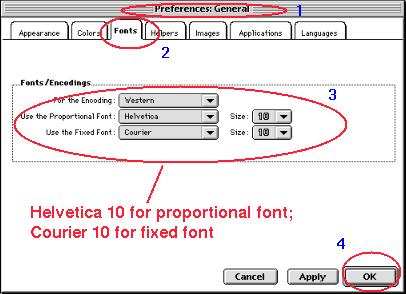
Go to the "Preferences" under Options. Choose "General Preferences", and
choose "Fonts" under that.
Make a note of the fonts in use for
later restoration and set
Netscape
display fonts to Helvetica 10 or Times 10
for the proportional font and to Courier 10 for the
fixed font (the fonts that display best on the
screen---e.g. Geneva or Monaco---are
not the fonts that print the best).
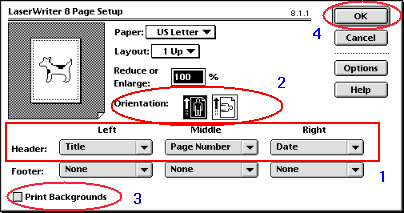
(2) In "Page Setup" under the "File" menu in Netscape,
select the left header to be "Title", the middle header to be
"Page Number", and the right header to be "Date". Check that the "Orientation"
is
vertical (portrait mode), and that the "Print Backgrounds" box is NOT
CHECKED.
Click "OK" to
close the page setup (Note: these instructions assume you are using
the Laserwriter 8 driver for your printer; modify accordingly if you are using
a different driver.)
(3)
CLICK ON THE FRAME CONTAINING THE PAGE TO BE PRINTED. This is important, since the next step will print only the selected frame. The selected frame is indicated by a box around it in the browser display.
(4)
Choose "Print Frame" from the Netscape
"File" menu. If this is the first page
you are printing, choose "Options" and in the resulting dialog box set
"Calibrated Color/Grayscale". Close the "Options" dialog box and click
"Print".
(5) Repeat preceding two steps for whichever pages you wish to print
(Don't forget to select the correct frame before printing). Note that
the preceding step should print all text and images in the scrollable region of
the selected frame
(not just the part displayed currently in the browser); thus the print output
from a single frame may be multiple pages. However, this step does
not print the overall frames layout itself, just the file displayed in a single
frame.
(6)
When you are finished printing, reset the browser font preferences to their previous values.
Pages of the Tutorial so printed may be distributed without restriction for educational applications and training.