

Navigation | Relative Addresses


Relative Addresses
The term "path" is sometimes confusing for new users of the Web. However, it is really a simple concept: A path is the sequence of directories that must be traversed to get from one directory to another. (In Windows directories are often called "folders"; we will use the two terms as synonymns.) In order to construct all but the simplest of Web documents, it is useful to know the basics of how to specify paths between directories and files.
The subsequent
material in this
section is somewhat more technical than the preceding discussion. It is not
essential to casual Web use, but is important if you plan to construct your own
Web site.
Directory Hierarchies
Consider the directory
structure shown in the figure below.
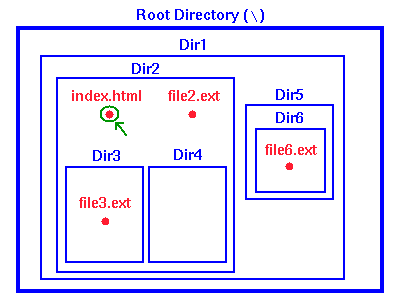
This typical directory structure has a master directory (usually called the root directory and designated on a PC by the symbol "\") that contains within it all other directories as subdirectories, and each directory so contained may itself contain subdirectories. In this example the root directory contains the directory Dir1, and this directory in turn contains the directories Dir2 and Dir5. Finally, Dir2 contains subdirectories Dir3 and Dir4, while Dir5 contains a subdirectory Dir6.
The files on the system are contained in these directories. In the figure some
representative
files are illustrated in red. For example, the file index.html
(see the green arrow) is
contained in the directory Dir2, which is a subdirectory of
Dir1, which is finally a subdirectory of the root directory.
Directory Trees
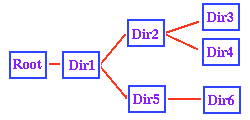 Another useful way to look at this directory structure is in terms of a
Directory Tree. The adjacent figure shows a tree diagram
corresponding to the directory structure illustrated in the first figure.
If we view this as a tree (fallen on its side), the branches of the tree
correspond to the subdirectory structure. If you stand the directory tree
upright, this analogy also makes
clear why the master
directory containing all other directories is termed the "root" directory.
Another useful way to look at this directory structure is in terms of a
Directory Tree. The adjacent figure shows a tree diagram
corresponding to the directory structure illustrated in the first figure.
If we view this as a tree (fallen on its side), the branches of the tree
correspond to the subdirectory structure. If you stand the directory tree
upright, this analogy also makes
clear why the master
directory containing all other directories is termed the "root" directory.
Paths
The directory tree diagram illustrates graphically the meaning of a path: it
literally is
a path: the (shortest)
one that we would follow on the directory tree to go from one
directory to another. For example, consider the files illustrated in the first
diagram. Suppose we ask what the "path" is from the file index.html
to the file file3.ext. The file index.html is in the
directory Dir2 and file3.ext is in the directory
Dir3. From the tree diagram, to get from index.html to
file3.ext we must first go to the directory Dir3, which is
contained in Dir2. We say that (relative to the file
index.html) the file file3.ext is at the location
Dir3\file3.ext. Likewise,
relative to the directory Dir1, the file file3.ext is at
Dir2\Dir3\file3.ext, and so on.
Examples such as these are termed "specifying
the relative path to a file" from some starting point.
Specification of Paths
Thus, the complete path to a file that lies in a subdirectory of your present
directory is specified by listing, in order, the directories (omit the one
that you are in) that you must pass
through to get to the file, with backslashes
after each directory name, and
followed finally by the file name. Pretty simple, once you get the hang of
it!
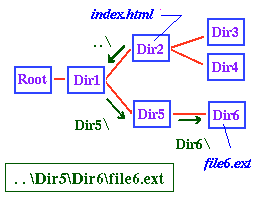 But what if the file is not in a subdirectory of your present directory?
For example, where is the file file6.ext (which is in Dir6)
relative to the file index.html? The same rule applies
as before, but the adjacent figure illustrates that
to get to the directory Dir6 from the directory Dir2 we
must first go BACK
in the directory hierarchy until we reach a directory that
contains Dir6 (and, of course, Dir2) in its subdirectory
structure.
But what if the file is not in a subdirectory of your present directory?
For example, where is the file file6.ext (which is in Dir6)
relative to the file index.html? The same rule applies
as before, but the adjacent figure illustrates that
to get to the directory Dir6 from the directory Dir2 we
must first go BACK
in the directory hierarchy until we reach a directory that
contains Dir6 (and, of course, Dir2) in its subdirectory
structure.
Thus, to reach file6.ext from index.html
we go back to Dir1, then to its subdirectory Dir5,
and then to its subdirectory Dir6.
The notation that is used to go back one level in a directory
hierarchy is "..\" (two dots, followed by a backslash),
and we may say that the location of file6.ext
relative to index.html is
..\Dir5\Dir6\file6.html, as illustrated in the preceding figure.
Absolute and Relative Addressing
The examples of addresses we have just been considering are termed "Relative
Addressing", because the location is specified
relative to our present location.
However, notice that we could also specify an "Absolute Address" for files
by going back to the root directory and
writing the complete path to the file from there. In the previous example, the
absolute address of file6.ext is \Dir1\Dir5\Dir6\file6.ext,
where the initial "\" stands for the root directory.
Notice the difference between absolute and relative addresses: if I move the file index.html to a new directory, the address of file6.ext relative to index.html changes, but its absolute address remains the same.
On the other hand, suppose I move the entire directory structure to the right of "Root" in the directory tree intact to a new location on the same computer or a different computer, as illustrated in the adjacent diagram. Then generally the absolute address of file6.ext would change, but its address relative to index.html (indeed, relative to any file in the directories that I moved) would stay the same.
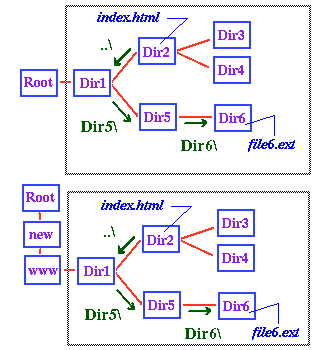
Thus, in the preceding diagram the absolute address
of file6.ext is \Dir1\Dir5\Dir6\file6.html in the upper
example and \new\www\Dir1\Dir5\Dir6\file6.html in the lower example,
but since the part
inside the gray boxes is the same in the two cases, the relative address as
referenced from index.html is unchanged.
The Connection Between Paths and URLs
So why should you worry about paths, whether absolute or relative,
if you are creating
web documents? Because the path is the part of a web document's URL that gives
the document's location on the server on which it resides.
Just as the location of a file can be given relative to the location of
another file, or can be given as the absolute path to the file
(which is really the file's location relative to
the computer's root directory), so the path portion of a document's URL can
also be specified relative
to the location of another document or in terms of an absolute location.
In the latter case, one refers to an absolute URL, and it is given,
not in terms of the location relative to the computer's root, but in terms
of the base directory for all the html documents.
This directory is often called the
html document root.
Thus to determine the appropriate path portion of a document's absolute
URL, one
needs to know its directory path on the server, relative to the
html document root. If the server is a Windows machine, it has a
path of the form that we discussed above. To get the path portion
of the document's absolute URL, simply:
To obtain the complete absolute URL, combine this path part with the host name and the string (http://, ftp://, etc.) that gives the method of file access.
To determine the URL of document A relative to document B, just write the directory path of A relative to B and replace each backslash with a (forward) slash.
So why, you may well ask, do I have to worry about both slashes and
backslashes? Why couldn't we just use one or the other for both directory
paths and URLs? The answer lies in the fact that URLs and web browsers
were first developed on Unix machines. There the forward slash is used
in directory paths and they were naturally carried over into
URLs. Unfortunately, however, the backslash already had a long history
of serving as the delimiter in directory paths in the PC world, so
it was retained in this role even after Windows machines began to be used
as Web servers. Consequently, in the Windows environment one has to use
two different symbols, while you can get away with only one in the Unix
world.
Use Relative Addressing Whenever Possible
Absolute and relative addressing clearly each have advantages and
disadvantages, but in producing Web pages it is advisable to make
addresses to files on the same machine relative addresses unless there
are circumstances dictating otherwise.
Then, if
the directories containing your Web pages are moved intact
to another machine the
links among these files should
still work properly. If instead the files are specified by their
absolute addresses, the links to local files in your directories
will often "break" when you move the files,
because the absolute addresses will generally change. Repairing these broken
links can be a time-consuming task if your site involves many files.
Homepage Exercise: Relative and Absolute Addresses
If you wish, you may now use your homepage folder and files to illustrate some
of these ideas with this
exercise.
The elementary examples in this exercise illustrate the difference between absolute and relative addressing, and how to implement relative addressing for the two simple (but common) cases where the file being addressed is either in the same directory as the HTML file (the next.gif example), or in an immediate subdirectory of the HTML file (the gifs\previous.gif example). As we have noted above, it is generally advisable to use relative addressing in your Web pages to increase portability.