

Image Files | Transparent Backgrounds


Transparent Backgrounds
Sometimes inline images have more visual impact if the "background is removed". For example, consider the following two inline displays of the same image, the first with the background displayed and the second with it suppressed:
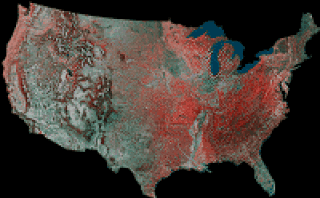
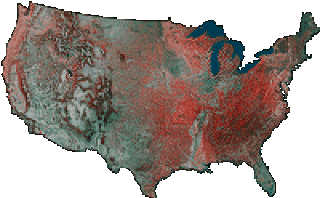
In the second example, the background is not actually removed, but is instead effectively set equal to the color of the browser display, which is equivalent to making it transparent. We now demonstrate how to "remove the background" from a GIF image using a Mac program called Transparency. On Unix and PC systems a related program called giftrans can be used to accomplish the same thing, though it is not quite as easy to use as Transparency.
We note that only one color can be removed in this way, and it will be
removed for all occurrences in the figure. Therefore, this method is most
effective if the background is a single color that
appears only in the image background.
Making Backgrounds Transparent
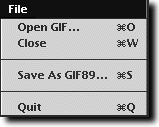 Double-click the Transparency icon to open it. The menu is
exceedingly simple, having only one item with the pulldown choices shown in the
adjacent image. Choose "Open GIF" and from the resulting dialog box select the
.gif file to be processed.
Double-click the Transparency icon to open it. The menu is
exceedingly simple, having only one item with the pulldown choices shown in the
adjacent image. Choose "Open GIF" and from the resulting dialog box select the
.gif file to be processed.
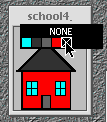 The image will be displayed, as in the example shown to the left. Place the
mouse cursor over the color to be removed in the figure and hold the button
down. A popup color map will appear over the figure, as shown in the image to
the right, with the cursor over the entry in the color map corresponding to the
color that the mouse was over when the button was clicked. This entry will be
under the cursor, will be darkened, and will have an "x" in its box. Without
moving the cursor off this color, release the mouse button, thus selecting this
color for removal when the image is later displayed by a browser.
The image will be displayed, as in the example shown to the left. Place the
mouse cursor over the color to be removed in the figure and hold the button
down. A popup color map will appear over the figure, as shown in the image to
the right, with the cursor over the entry in the color map corresponding to the
color that the mouse was over when the button was clicked. This entry will be
under the cursor, will be darkened, and will have an "x" in its box. Without
moving the cursor off this color, release the mouse button, thus selecting this
color for removal when the image is later displayed by a browser.
Next, select from the main menu "Save as Gif89...". and then select "quit". A dialog box will pop up asking whether you want to save the changes. Choose "Save" (see figure below).
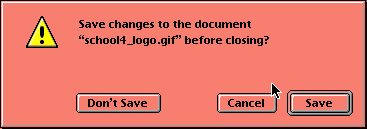
Now, if all has been done properly, the GIF image will display inline with the
color removed that was selected in the preceding steps.
Example for Your Homepage
Let's now use the above technique to add an image to your homepage with its background removed. We shall give you a .gif file to download for the example, but feel free to download a different .gif file if you prefer. Go to the following address:
hold the mouse over the schoolhouse image at the top of that page, press the button, and save the file to your folder on your local disk with the default name (school4_logo.gif). Note that in what follows we assume that the file you just saved and your homepage are in the same folder.
Now carry out the steps outlined above to remove the (gray) background from this image, saving it under the original name in your folder. Then go to your homepage file in the same folder and insert the following text at a convenient place (use the mouse to copy and paste):
<img src="school4_logo.gif" hspace="15" |
Save the changes and reload the homepage in the browser; if all is well, you should then have the schoolhouse icon (or another image if you so chose) positioned left, with text wrapped around it on the right and the background of the image should be transparent.