

HTML | Screen Captures


Screen Captures
In this exercise we are going to combine several things to add a useful link to your homepage: how to capture screen images to a PICT file, how to convert PICT format to GIF format (and rescale if necessary), and how to add a link to the resulting GIF image to your homepage.
The two pieces of software that we shall use are Flash-It, a screen
capture shareware program for the Mac, and GifConverter, another Mac
shareware program that is a valuable asset in converting and manipulating
images.
Screen Capture with Flash-It
It is often important to be able to capture all or part of the computer display
screen. For example, many of the illustrations in this tutorial started off as
screen capture images.
The standard Macintosh operating system incorporates a rudimentary
screen capture function, but the shareware program Flash-It gives a
richer set of possibilities.
Flash-It Capture Modes
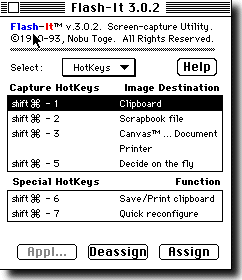 Open the "Control Panels" in the System Folder and double-click on
"Flash-It
3.0.2" to open it. The resulting display can be toggled between two screens:
"Hotkeys" and "Options". The "Hotkeys" screen lists the ways in which a screen
capture can be saved (see figure at right).
All actions are initiated by simultaneously holding down
the "Shift" and the "Apple" (the one with the cloverleaf symbol) keys and then
hitting a third key. The possibilities are listed in the "Hotkeys" screen:
Open the "Control Panels" in the System Folder and double-click on
"Flash-It
3.0.2" to open it. The resulting display can be toggled between two screens:
"Hotkeys" and "Options". The "Hotkeys" screen lists the ways in which a screen
capture can be saved (see figure at right).
All actions are initiated by simultaneously holding down
the "Shift" and the "Apple" (the one with the cloverleaf symbol) keys and then
hitting a third key. The possibilities are listed in the "Hotkeys" screen:
The most useful option for our purposes will be "Shift + Apple + 3", which will
allow us to capture all or part of the screen as a PICT image, and to store
that image in a file.
Flash-It Options
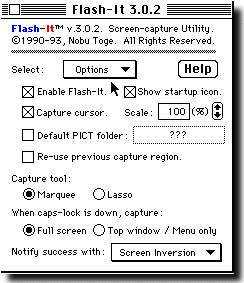 If the Flash-It display is toggled to the "Options" page (figure at
right), there are several choices to control how the screen is captured.
We won't discuss them all (see the documentation
that can be accessed through the "Help" button for more details).
The most important for our
discussion are
If the Flash-It display is toggled to the "Options" page (figure at
right), there are several choices to control how the screen is captured.
We won't discuss them all (see the documentation
that can be accessed through the "Help" button for more details).
The most important for our
discussion are
For the examples we shall consider here, select the options shown in the
preceding figure and close the Flash-It control panel.
Example: Capturing a Screen Image to a File
We are now going to perform an exercise in which we will add a short tutorial
on the encoding program BinHex,
complete with illustrative
pictures, to our developing homepage. As a first step, let us
capture two images of the main BinHex menu.
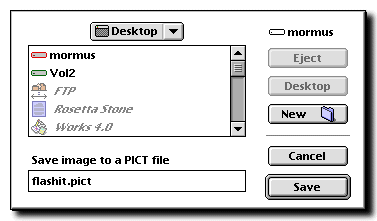
If you now look on the desktop, there should be a PICT image file called flashit.pict.
The preceding capture used the default
(enabled by "caps lock") that captured an entire window
and its associated menu.
Let's now make another capture where we select explicitly the
region to be captured.
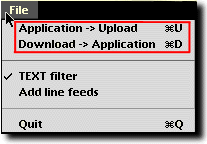
Repeat the above steps to capture the "File" menu of BinHex, except
that this time
Converting Image Formats with GifConverter
We cannot use the images that you just captured directly "in-line"
in a Web document
because Web browsers do not generally display PICT format in-line. Thus, we
must convert the images to either GIF or JPEG format, which are the standard
formats that browsers can display in-line.
We shall use the shareware program GifConverter to convert the PICT
images to GIF format. In the process, we will also learn how to use
GifConverter to resize and to crop images.
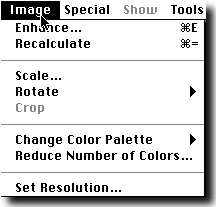
Open the file flashit.pict that you just created on the Desktop using
GifConverter. Click on the image to
select it (a banded box should appear around the image, indicating that it is
selected). Pull down the "Image" window and select "Scale" (see figure at
above left); this
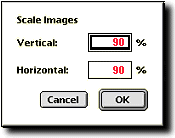
will pop up a dialog box like the one shown in the figure above right. In
this figure you must specify the percentage of scaling in the vertical and
horizontal direction. Select 90% for each and click "OK".
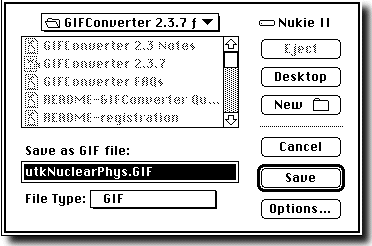
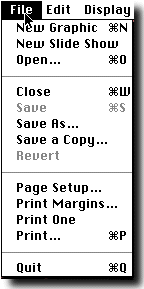 Now let's save our rescaled image in GIF format. Pull down the "File" menu and
select "Save As" (left figure). This pops up the dialog box shown
in the next image below.
In this dialog box, select "GIF" for the format, select your homepage folder
for the destination, give the file a name flashit.gif,
and select "Save".
This saves the image to the file GIF-format file flashit.gif
in your homepage folder. You can throw away the
original PICT image file flashit.pict
on the Desktop by dragging it to the
trash.
Now let's save our rescaled image in GIF format. Pull down the "File" menu and
select "Save As" (left figure). This pops up the dialog box shown
in the next image below.
In this dialog box, select "GIF" for the format, select your homepage folder
for the destination, give the file a name flashit.gif,
and select "Save".
This saves the image to the file GIF-format file flashit.gif
in your homepage folder. You can throw away the
original PICT image file flashit.pict
on the Desktop by dragging it to the
trash.
 Now let's convert the other screenshot image that we took earlier. In the
process, we shall see how to crop images with GifConverter.
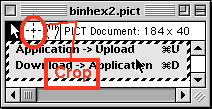
Open the file binhex2.pict created previously on the Desktop with
GifConverter and click on the image to select it (see figure at left).
Use the mouse button to select the cropping symbol (the "+"
made from dashed lines
that is circled in the adjacent image).
Now let's convert the other screenshot image that we took earlier. In the
process, we shall see how to crop images with GifConverter.
Open the file binhex2.pict created previously on the Desktop with
GifConverter and click on the image to select it (see figure at left).
Use the mouse button to select the cropping symbol (the "+"
made from dashed lines
that is circled in the adjacent image).
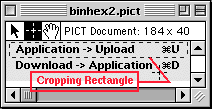 Hold the mouse button down to drag a rectangle around the part of the image
that you wish to retain and release the mouse button (see figure at right).
Then select "Crop" from the "Image" menu.
This will crop the image, leaving only the part that was
inside the cropping rectangle.
Do a "Save As" like before, and save this as a GIF image in your homepage
folder with the name binhex2.gif. At this point, you may
throw away the Desktop file
binhex2.pict.
Hold the mouse button down to drag a rectangle around the part of the image
that you wish to retain and release the mouse button (see figure at right).
Then select "Crop" from the "Image" menu.
This will crop the image, leaving only the part that was
inside the cropping rectangle.
Do a "Save As" like before, and save this as a GIF image in your homepage
folder with the name binhex2.gif. At this point, you may
throw away the Desktop file
binhex2.pict.
A Simple Example: Making a BinHex Tutorial
Open your homepage file index.html in your home folder and insert the
following HTML code at a convenient place:
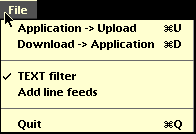
<h2>Using BinHex</h2> The encoding program <tt>BinHex</tt> can be used to encode binary files into ASCII. Thus, for example, a binary file can be sent by email if it is first encoded with <tt>BinHex</tt>, emailed, and then decoded with <tt>BinHex</tt> on the other end. <p> <img src="binhex.gif" hspace="15" vspace="5" align="left"> <tt>BinHex</tt> is easy to use. Open the program and select the "File" pulldown menu (see figure at left). Then, if you wish to encode a binary file, select "Application --> Upload", and give the name of the file in the resulting dialog box. If you wish to decode a file already encoded with <tt>BinHex</tt>, select "Download --> Application" and give the name of the file in the resulting dialog box. <p> For example, to encode a binary sound file for emailing, you would select <img src="binhex2.gif"> from the "File" menu and give the name of the file in the resulting dialog box. The default name of the encoded file is the original file name with the extension ".hqx" appended to it, and it is placed in the same directory as the original file. |
Save the file index.html, point the browser at it, and reload. You should then have something like the following on your homepage:
|
Using BinHex
For example, to encode a binary sound file for emailing,
you would select |
 from the "File" menu
and give the name of the file in the resulting dialog box.
The default name of the encoded file is the original file name with
the extension ".hqx" appended to it, and it is placed in the same directory
as the original file.
from the "File" menu
and give the name of the file in the resulting dialog box.
The default name of the encoded file is the original file name with
the extension ".hqx" appended to it, and it is placed in the same directory
as the original file.
In this HTML example, the image tag
<img src="binhex.gif" hspace="15" vspace="5" align="left"> |
places the image binhex.gif inline, aligned left (with text wrapping around it on the right), allowing 15 points of extra horizontal space and 5 points of extra vertical space around the figure (there are 72 points in an inch). The construction <tt> BinHex </tt> says to render the word "BinHex" in "teletype font" (a fixed-width font often used to signify the name of a computer program). The remaining HTML in this example should be familiar from previous exercises.
Assignment: Use the preceding as a guide; go back to the BinHex program, take screen shots of the dialog boxes that result when you choose "Download --> Application" or "Application --> Upload", and incorporate these images into the BinHex tutorial you have just placed on your homepage.