

Web Browsers | Browser Basics


Browser Basics
The language of Web Browsers is generically termed hypertext. The
name implies that hypertext is more than just text on a computer screen. As we
shall see, it is much more than mere text. The most important feature of
hypertext is the concept of a link.
Hypertext Links
This Tutorial is a collection of hypertext documents.
The colored and/or underlined text (for example,
like this)
corresponds to hypertext links to other documents (or other locations within
the present document). Clicking
once on these links (try it)
will take you to the corresponding document, and if you
use the mouse to place the cursor over the link the corresponding address for
the link usually appears somewhere on the screen (usually at the bottom,
but exactly where depends on the
browser you are using---hold your mouse over a link without clicking
and see what happens!).
The preceding example of a link was to a simple text file, but links can correpond to much more interesting things. For example, try the following links (use the "Back" button, or hold the mouse down and choose "Back", to return if the link takes you to a new page) :
| An Image | A Sound File | A Movie |
| An Animation | An Internet Greeting Card | Camera Shots from Around the World |
| A Dictionary | An Interactive Tutorial Quiz | European Train Schedules |
Hypertext is for exploring, and you are unlikely to get into trouble by clicking on whatever link interests you. You can always return to the previous page by using the "Back" button on your browser (if you are not using frames), or by holding the mouse button down over a page and choosing "Back", and your browser probably has a "History" or "Go" list that allows you to return immediately to documents accessed earlier in the session.
In the worst case,
the "Home" button on the browser will rescue you from almost anything, taking
you back to where you started. And don't worry about damaging any hardware or
software on your computer by randomly clicking on hypertext links. If you can
do that, you are very clever indeed!
Browser Navigation Buttons
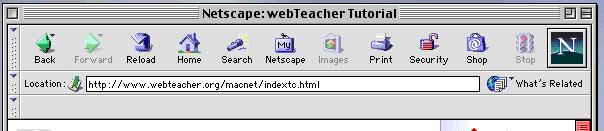
Exactly where the navigation buttons mentioned above are located depends on your browser. The following image shows the menu of Netscape Navigator 4.7 for the Macintosh. The "Back" button, as well as other navigation aids such as "Home" and "Forward" (you guessed it, the opposite of "Back"!) are evident. The "History" list in this case is a pulldown menu under "Go." Your browser is probably similar. Note that this is an IMAGE OF A BROWSER, not a browser---you can't click on the buttons in this image and expect it to do anything!
Most browsers are very intuitive, so just click on things to see what they do. If you don't like what they do, use the "Back" functions described above and try something else!
Visited and Unvisited Links
Unless something unusual has been done, your browser is probably
set up to distinguish visited from unvisited links: the color of links you
have already visited will be different from unvisited ones. The exact colors
depend on your browser and the document you are viewing. Two common colors for
visited and unvisited links are
red and blue, respectively, but they depend on the browser and how the document
that you are viewing has been written. For example, in the present
document the visited and unvisited links will probably be red and blue,
respectively, if you are using
Netscape Navigator with default settings as your browser.
Additional Navigation Buttons
At the top and bottom of the main pages of this tutorial there may be additional navigation buttons. Clicking on the right-arrow button will take you to the next section; the left arrow returns to the previous section; the round "H" button gives you help information. Notice that not all of these buttons appear on each page. Also note that these buttons are part of the page itself (not part of the browser) and have been added by the author of the page for your convenience.
Words Aren't the only Clickable Objects
In addition to words, other objects on a page may be clickable links. For example, images may be hypertext linked to something else. This will usually be indicated by a colored box around the image, or by some other signal (in Netscape Navigator the cursor image turns into a hand with a pointing finger when it is over a clickable link). When in doubt, click and see what happens!
The image shown above is a link;
note that
if the mouse is held over it the cursor turns into a pointing hand.
Click the image and see what happens. If your computer is set up properly to
play sounds from Web files, you should hear a short sound clip.
By default, clickable images usually
display with a colored box around them, but here is an example where the
colored box has been suppressed in the underlying hypertext document
for aesthetic reasons (it looks better without a box around it).